
Elirox Help Center
How to Set Up a TradingView Bot in Elirox
If you want your bot to open trades based on signals from a TradingView strategy, you can connect it through webhook alerts. To do this, create a TradingView Bot in the Elirox app, copy the webhook data, and paste it into your alert settings.
Step 1: Create a TradingView Bot
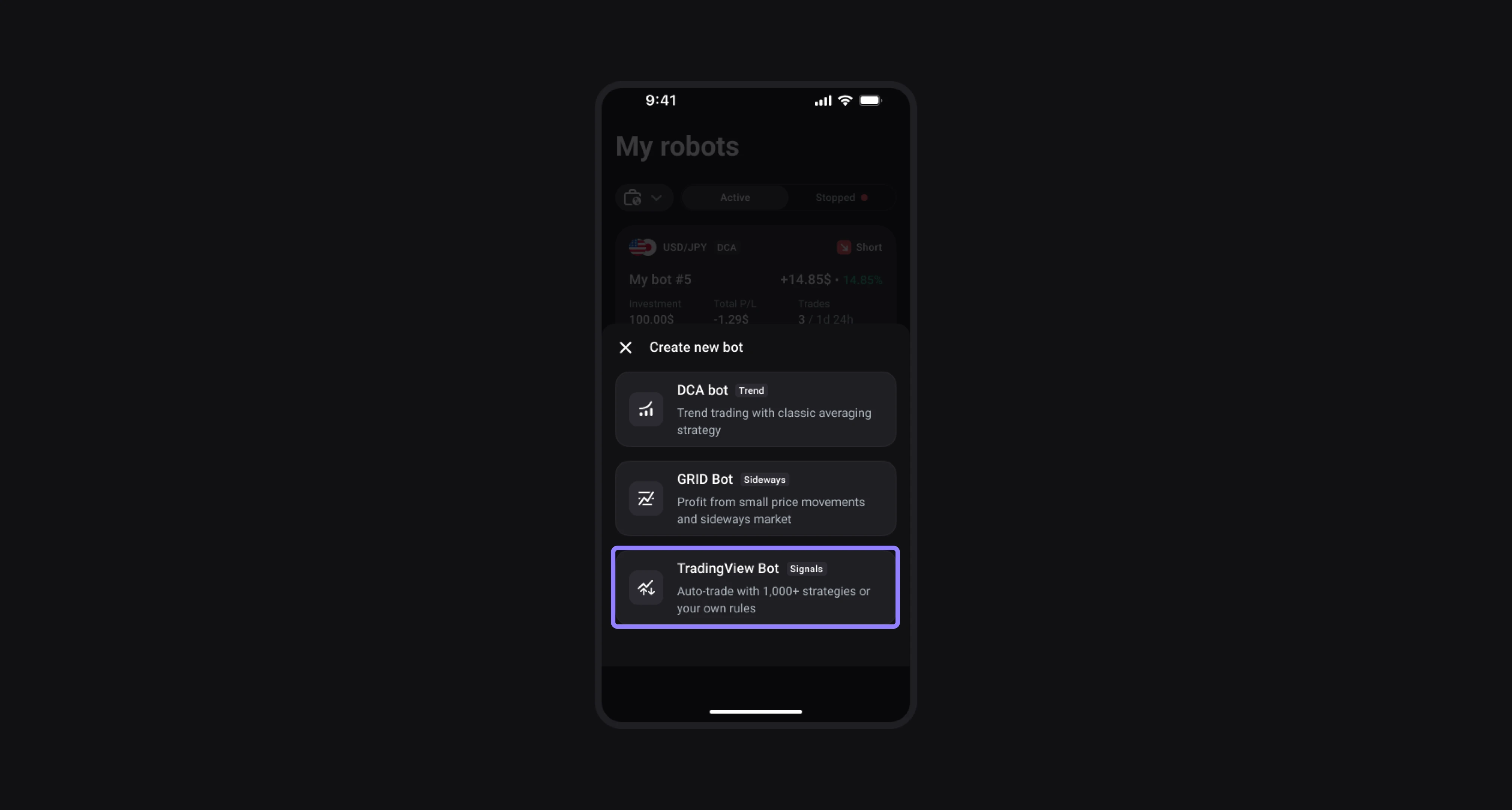
Open the bot creation screen in the Elirox app and choose TradingView Bot.
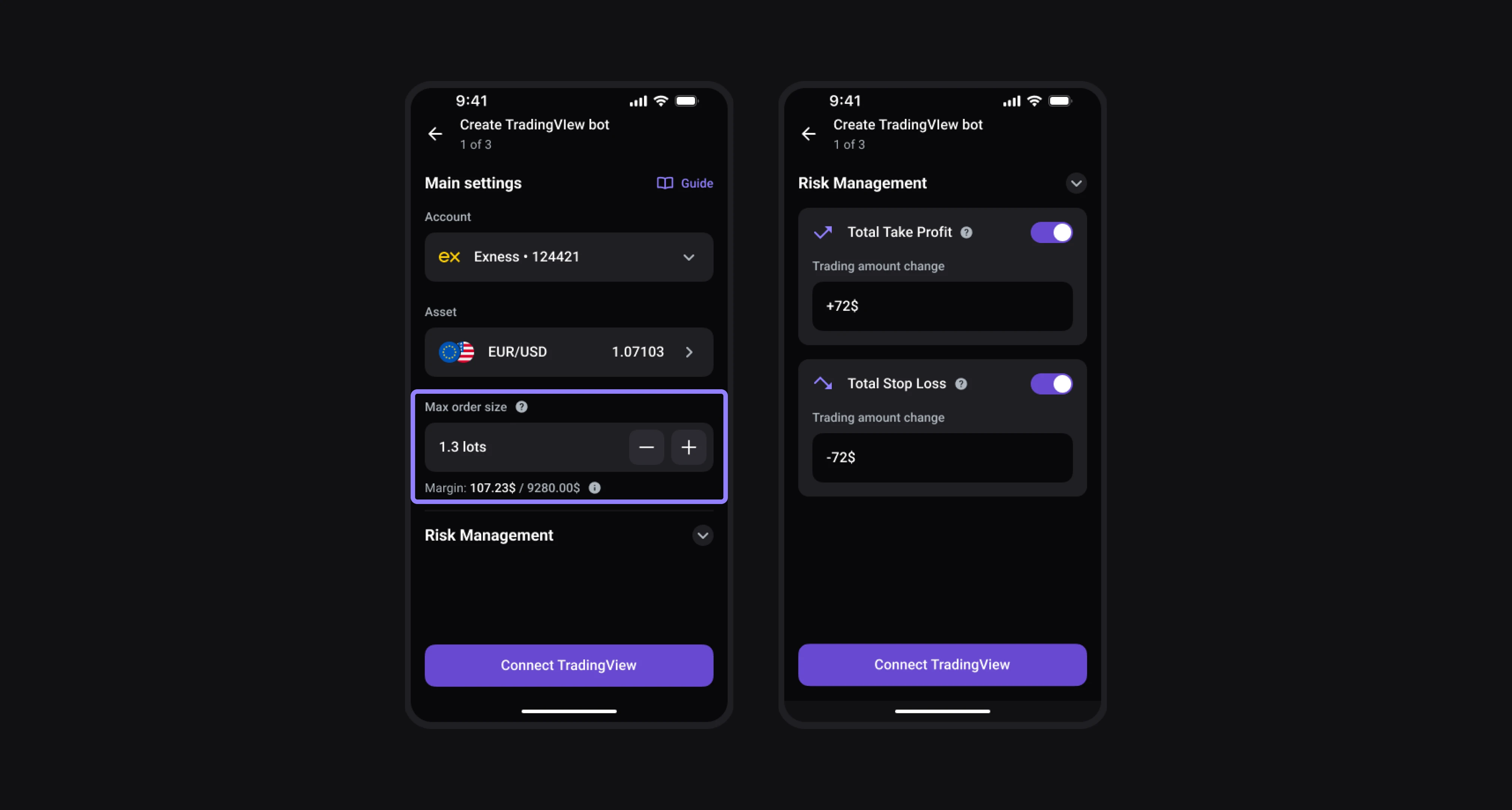
The bot settings screen will open. Choose your trading account and asset, then set the Max order size – the maximum size of one order. Your strategy decides how many orders to open and what size they are. If it sends a larger size or no size at all, the bot uses your Max order size.
If needed, expand Risk Management and set Total Take Profit and Total Stop Loss. The trade will be closed by whichever comes first: a signal from your strategy or your TP/SL.
Then click Connect TradingView.
Step 2: Add a Strategy to the Chart
On the next screen, click TradingView to go to TradingView, and open the chart for the trading pair you selected in Elirox.
Then click Indicators, open the Strategies tab, and choose a strategy from the list. You can also create your own strategy and select it.
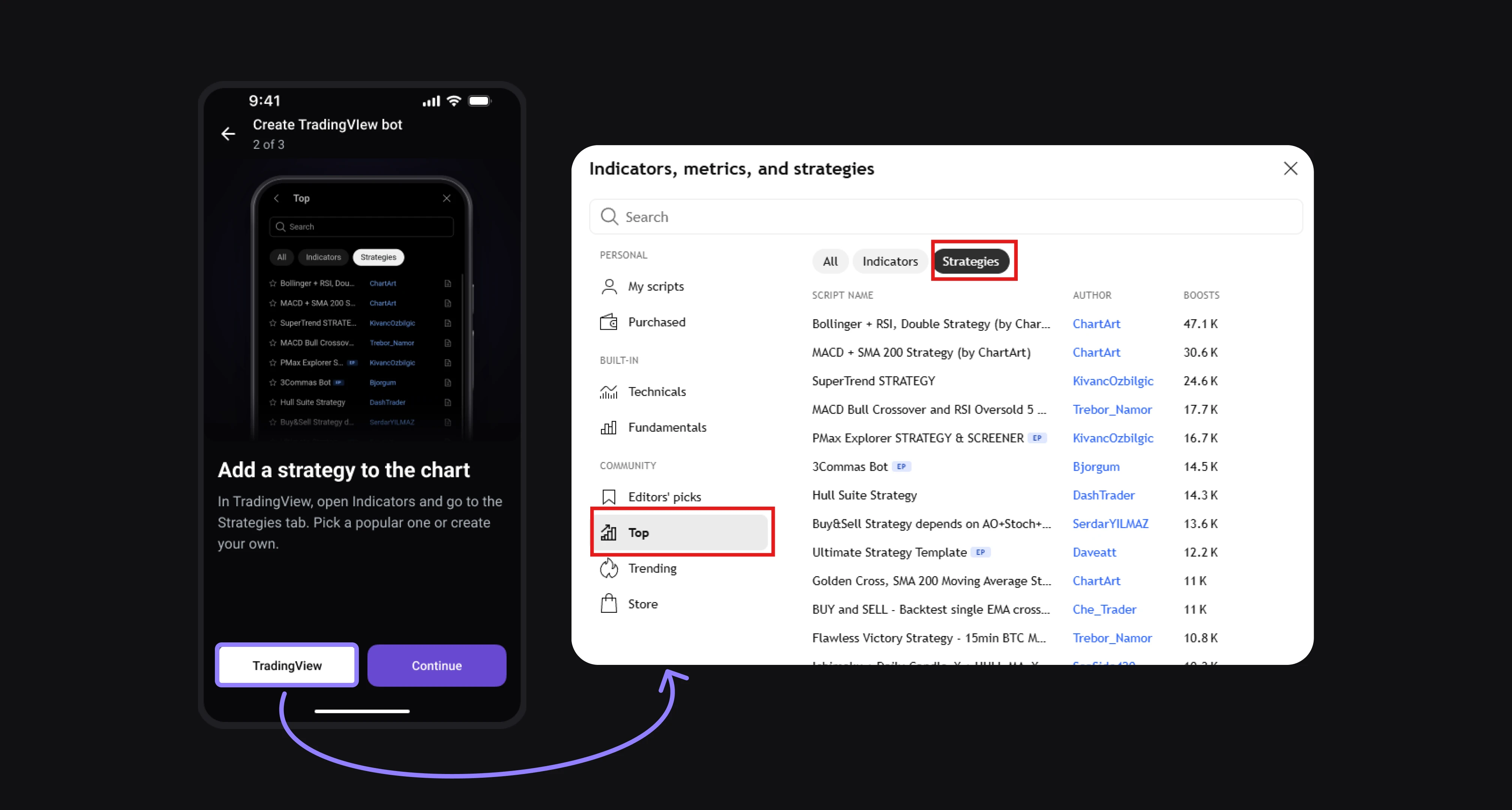
Return to the Elirox app and click Continue.
Step 3: Copy the Message and Webhook URL
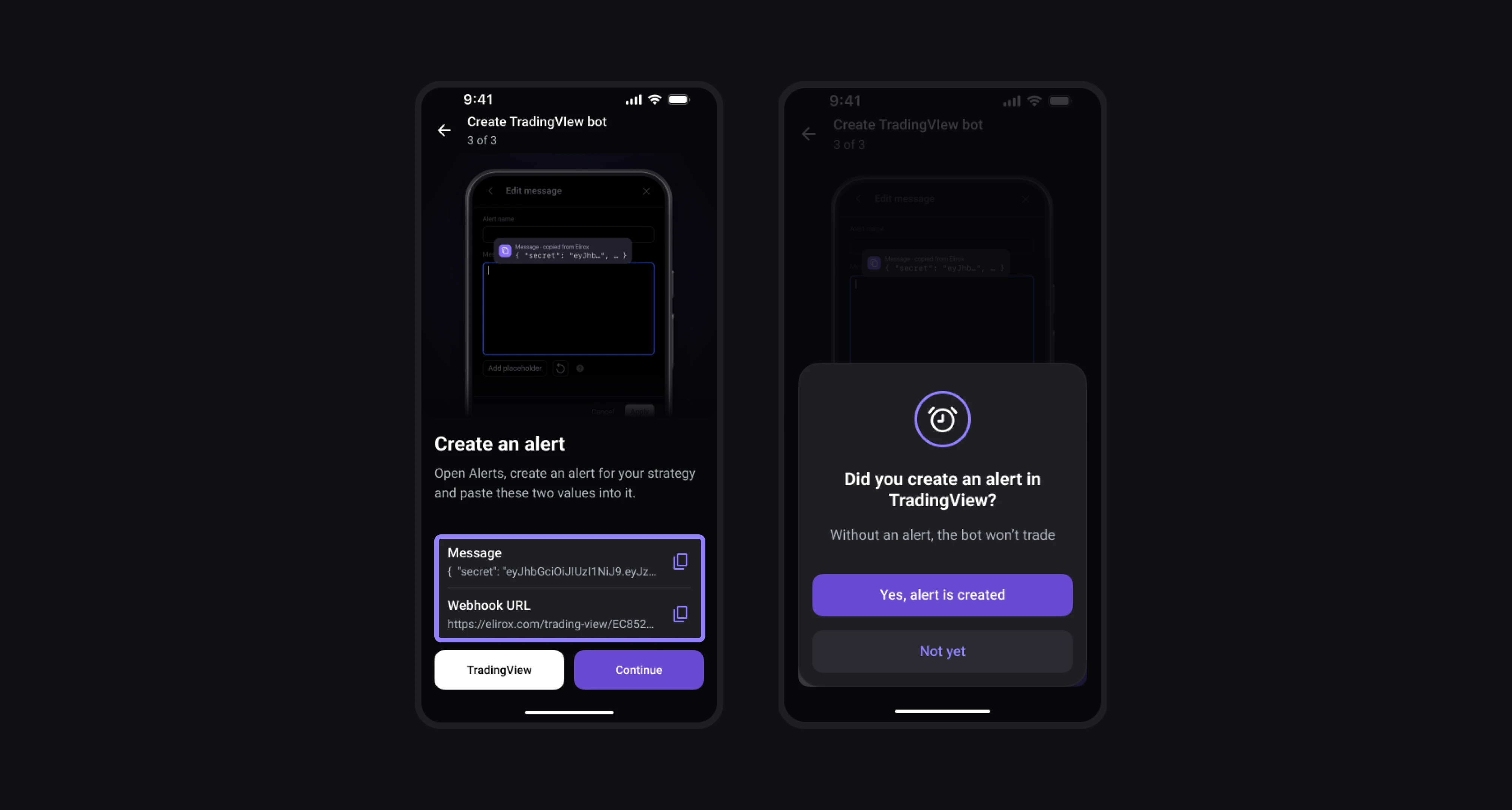
Elirox will show the Message and Webhook URL values you need for the alert. Copy both by clicking the corresponding fields, then click TradingView to go to TradingView.
If you click Continue without copying the values, the app will ask Did you create an alert in TradingView? Without an alert, the bot won’t trade. Click Not yet to go back and copy them.
Step 4: Create an Alert
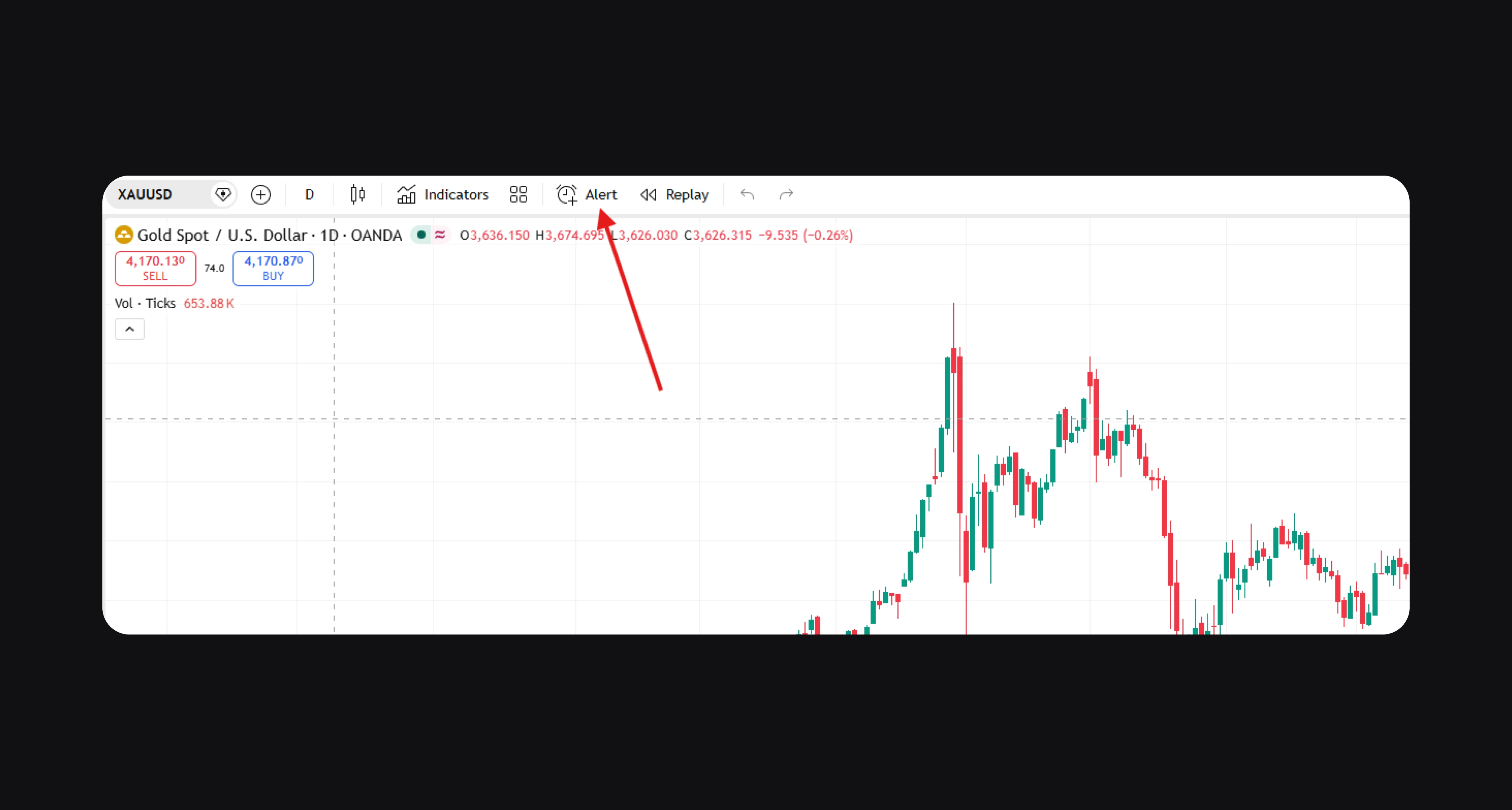
In TradingView, go to the Alerts tab.
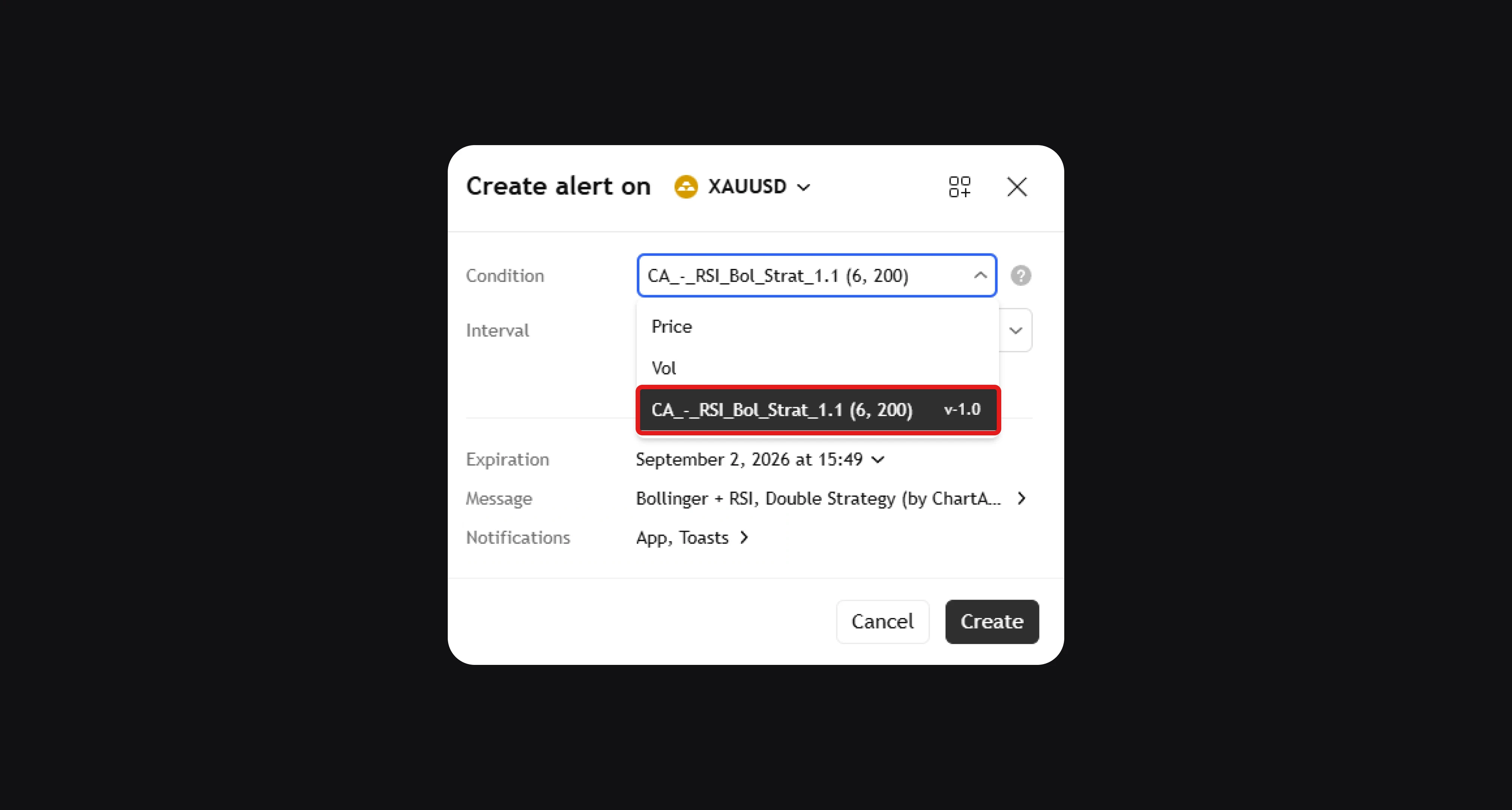
The Create Alert window will open. In the Condition field, make sure the strategy you selected earlier is chosen, not Price.
Step 5: Add the Message
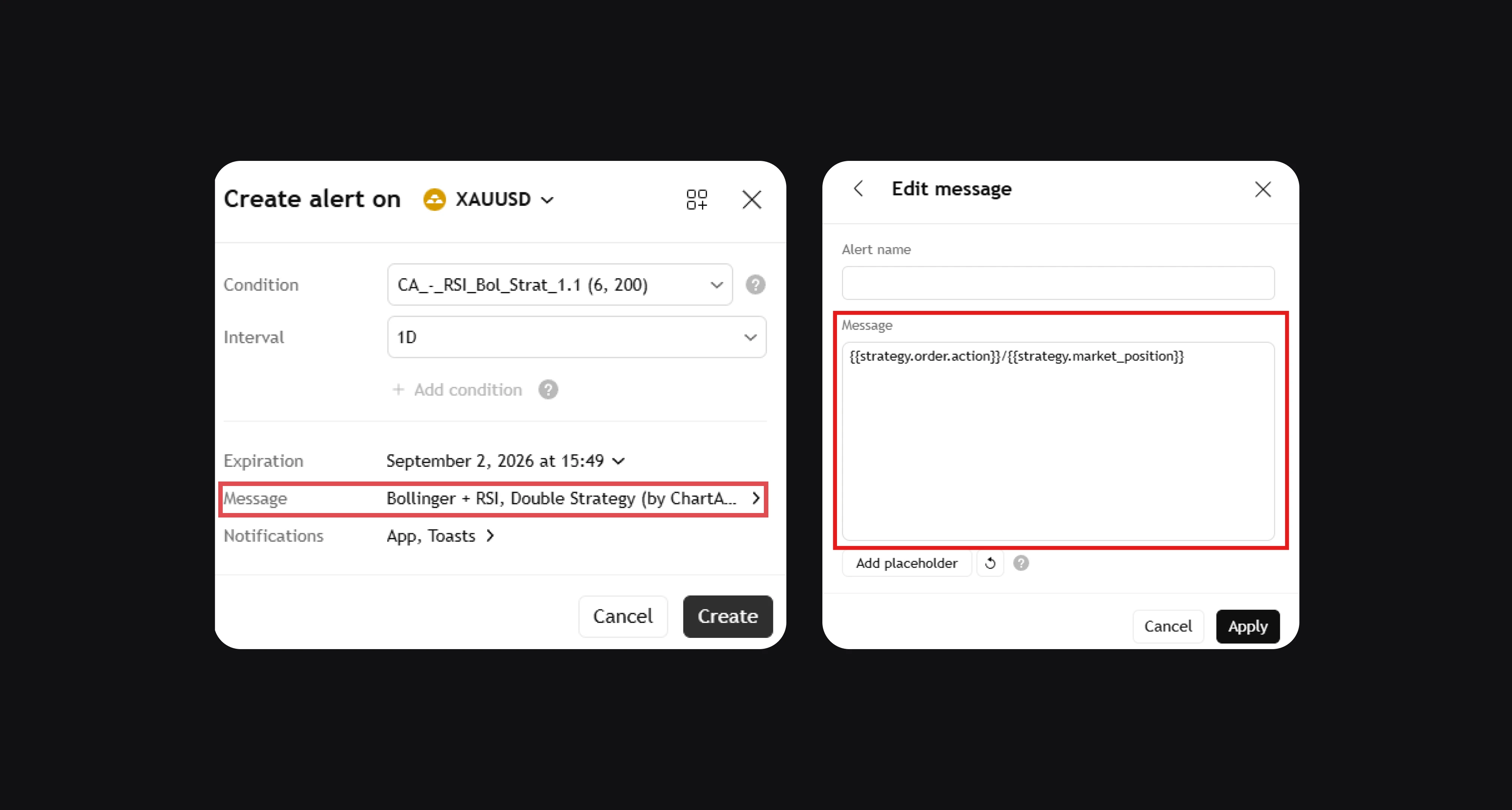
Open the Message field and paste the Message you copied in the Elirox app.
Make sure to paste the message exactly as it was copied, without editing it manually unless your setup requires a custom format.
Step 6: Add the Webhook URL and Save the Alert
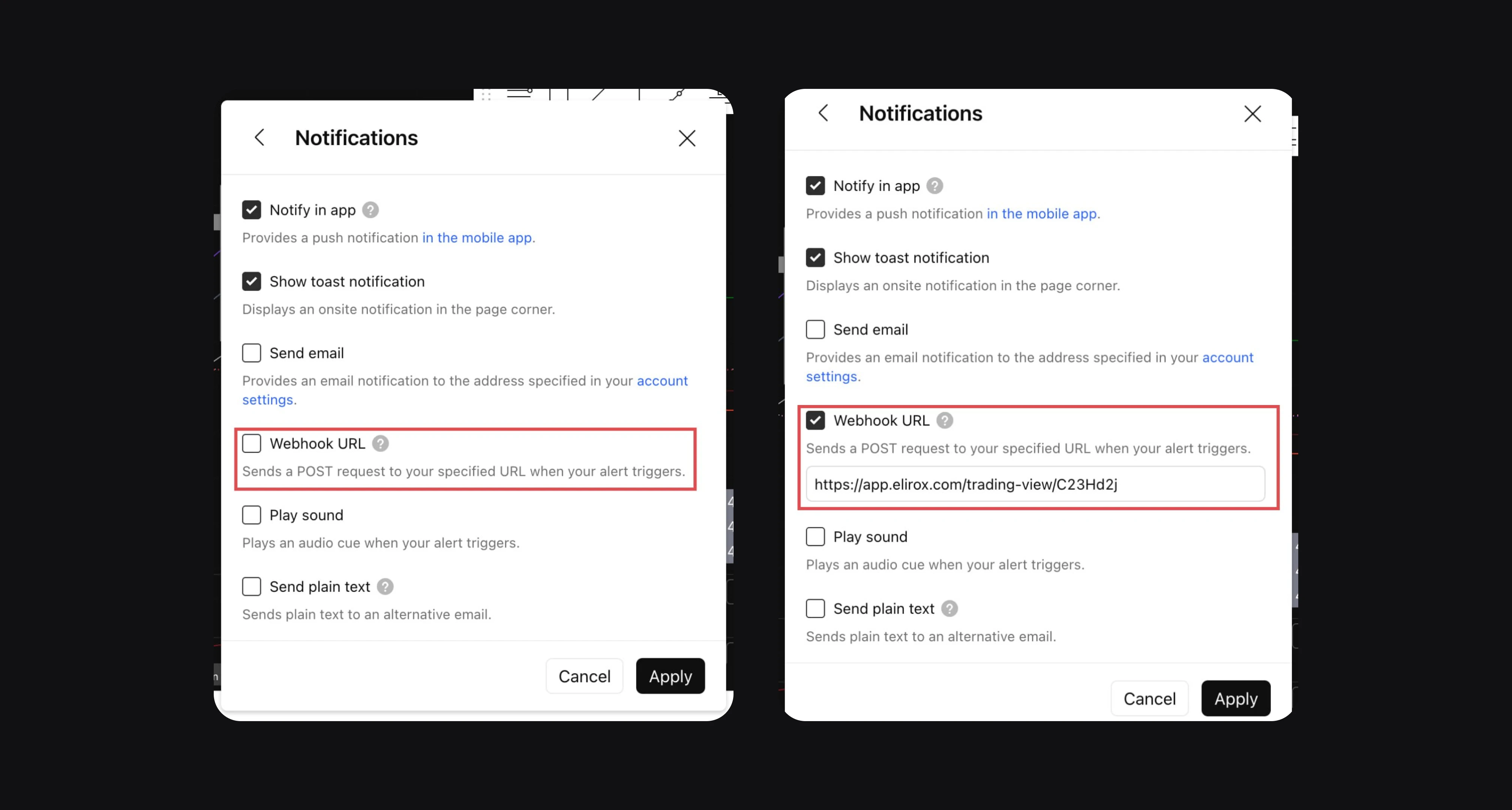
Open the Notifications section, find the Webhook URL option and enable it.
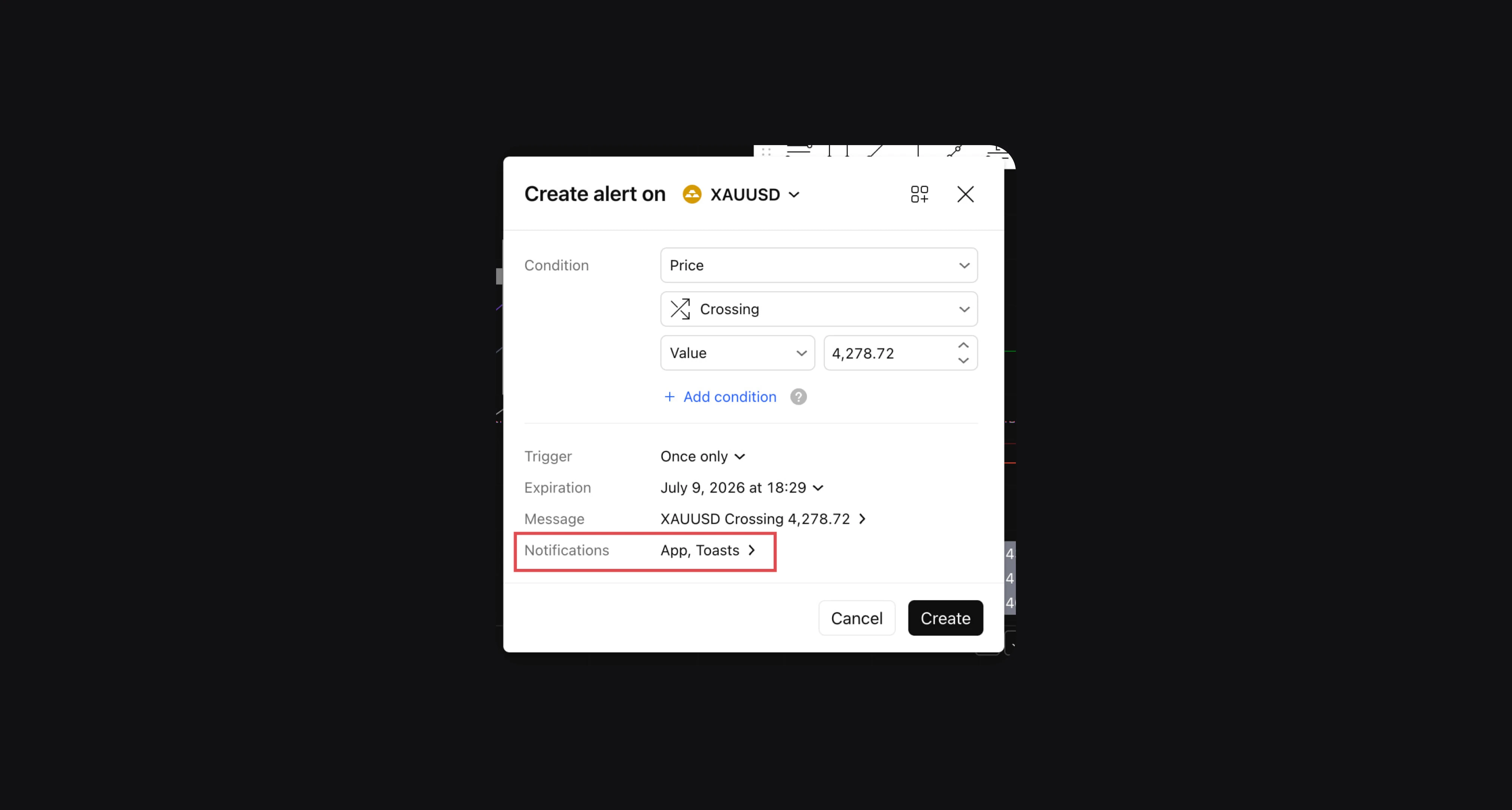
Then paste the Webhook URL that you copied in the Elirox app into the webhook field. Once all fields are filled in, click Apply.
Step 7: Start the Bot
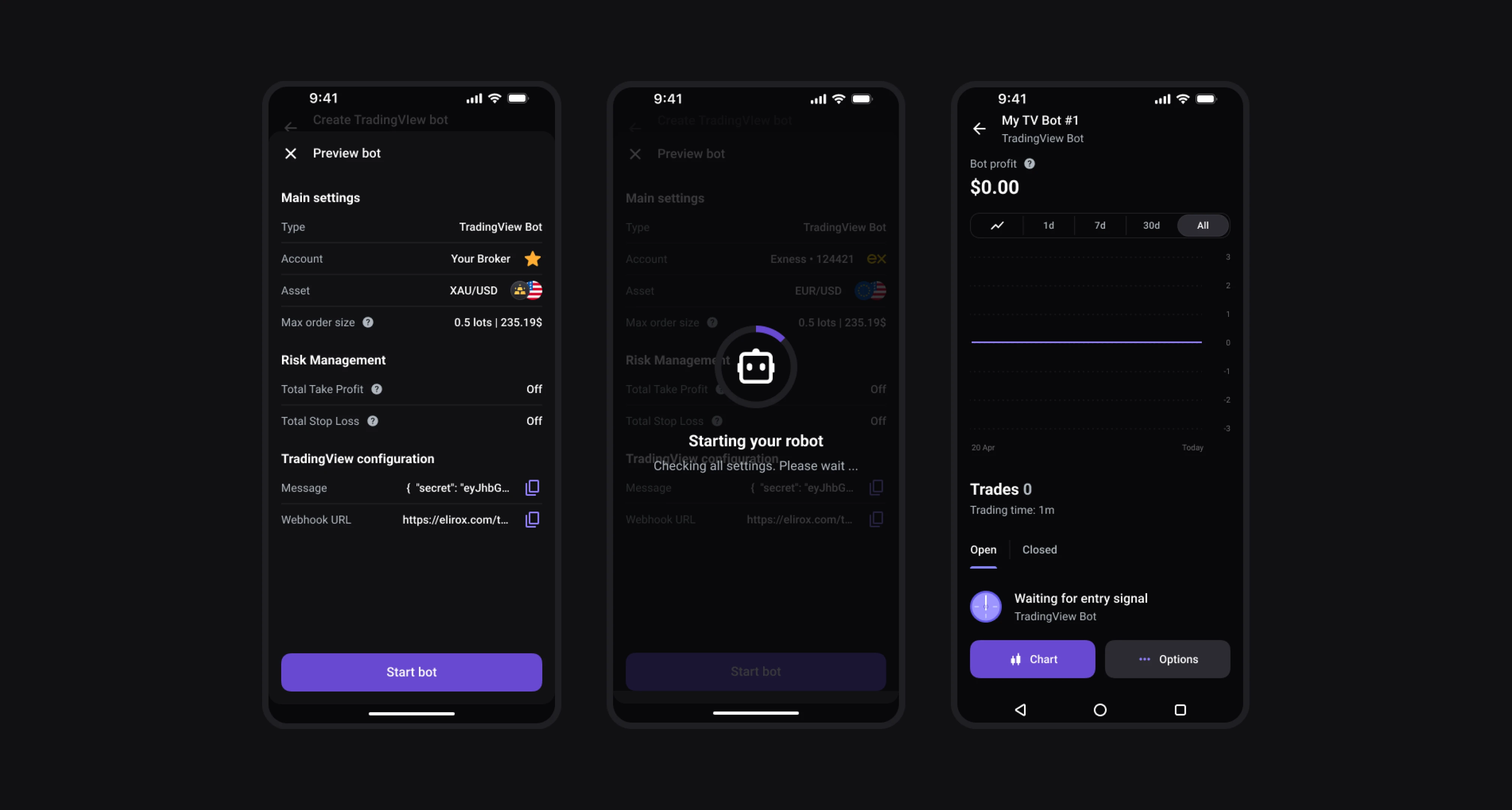
Return to the Elirox app and click Continue. The Preview bot screen will open. Check your settings and TradingView configuration, then click Start bot. Your bot will start and wait for the first signal from your strategy: you’ll see Waiting for entry signal.
Before using the bot on a live account, it is recommended to check that:
- the correct account and trading pair are selected
- the message was copied in full
- the webhook URL was pasted correctly
- the correct strategy is selected in the alert condition
If you see Last signal failed on the bot screen, click Open TradingView and check your alert settings. You can always find the Message and Webhook URL in Bot details.
Summary
- Create a TradingView Bot in the Elirox app.
- Choose your account and asset, set the Max order size and, if needed, Risk Management, then click Connect TradingView.
- Click TradingView, open the chart for the same trading pair and choose a strategy from Indicators → Strategies, or create your own strategy and select it.
- Click Continue and copy the Message and Webhook URL in the Elirox app.
- In TradingView, go to the Alerts tab and make sure the Condition field is set to your selected strategy, not Price.
- Paste the copied Message into the Message field.
- Enable Webhook URL in the Notifications section, paste the Webhook URL from Elirox and click Apply.
- Return to the Elirox app, click Continue, check the Preview bot screen and click Start bot.
💡 Please note that if your strategy uses separate signals for entry and exit, your alert logic should match how the bot is expected to handle those events.
If you need help setting up TradingView alerts, feel free to contact the Elirox support team.