
Elirox Help Center
Linking Your Exness Account to Elirox
Follow these steps to link your Exness trading account to the Elirox app if your Exness account was previously disconnected or linked to another partner. Once reconnected, you’ll be able to use Elirox’s automated trading bots without any issues.
Step 1: Choose Exness and sign in
Open the Elirox app, choose Exness from the list of brokers, and sign in to your Exness account.

Step 2: Tap Link existing account and copy the partner link
On the next screen, tap Link existing account. A tutorial screen will open, and at the bottom you will see the Elirox partner link. Copy this link, as you will need it later in the Exness partner change form.

Step 3: Log in to Exness and open live chat
Log in to your Exness account and open the Live Chat section from the menu.
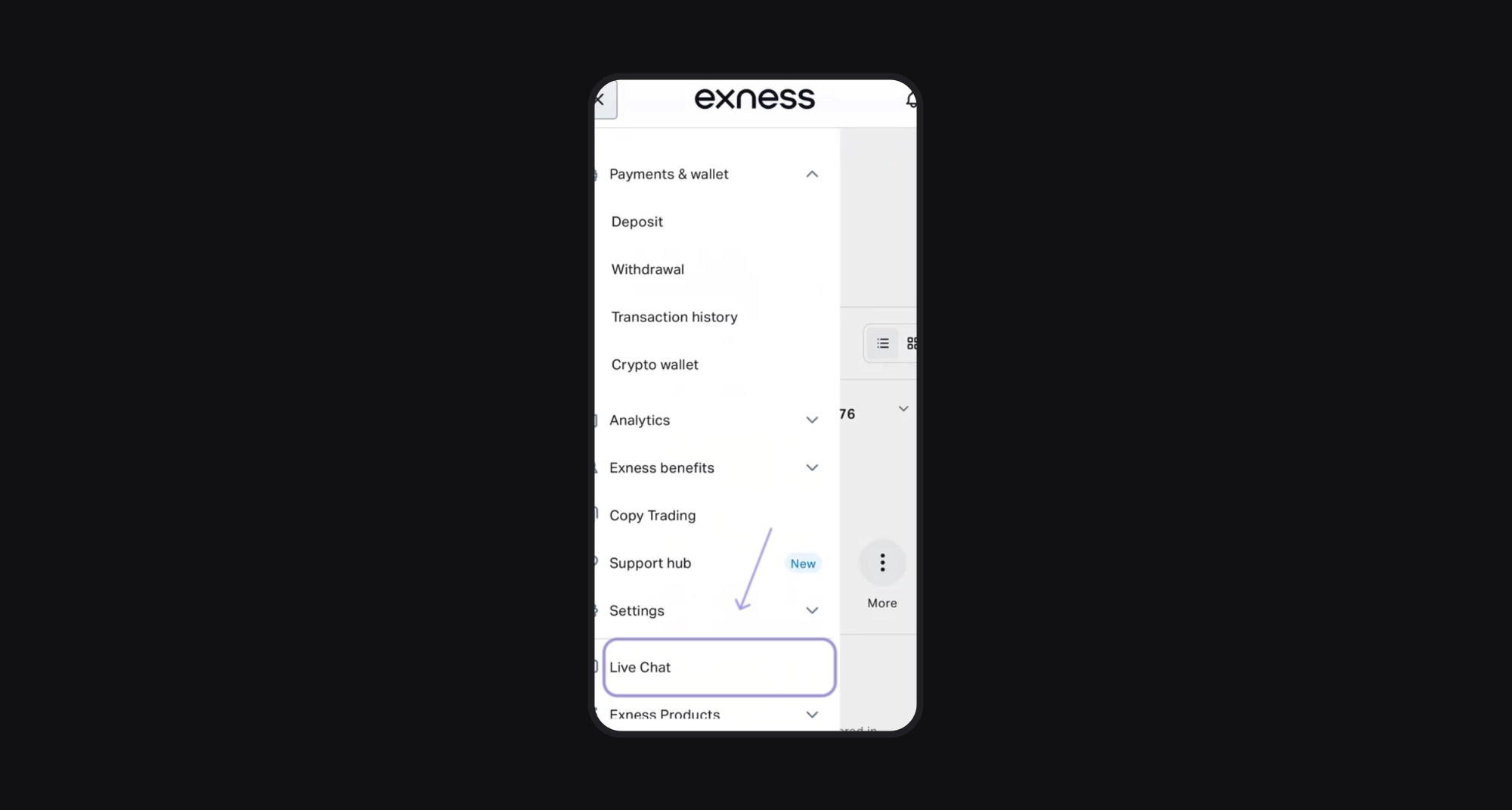
Step 4: Request a partner change
- Send the message “change partner” in the chat.
- Exness support will send you a link to the partner change form.
- Open that link to continue.
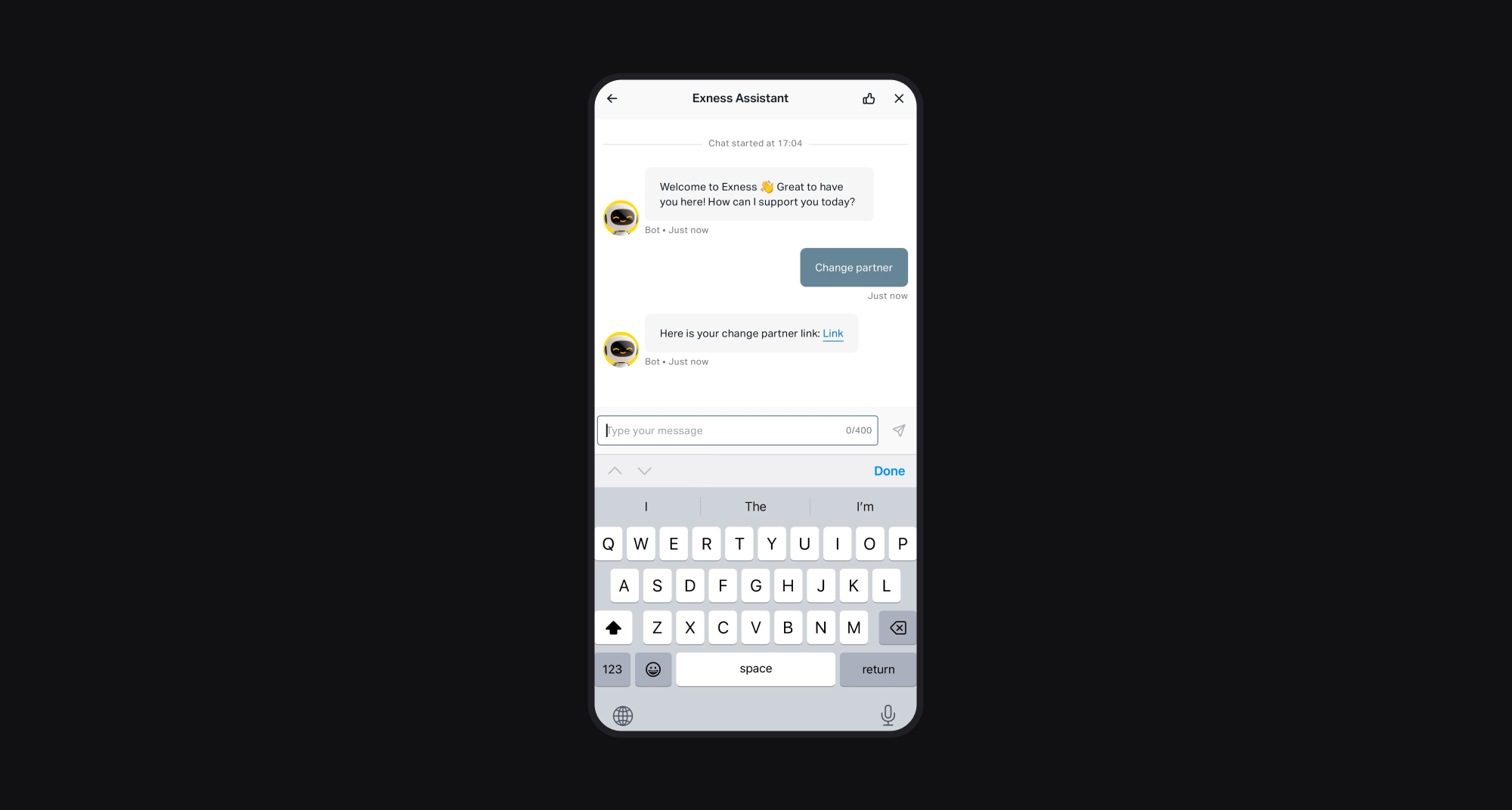
Step 5: Submit the partner change request
Open the partner change form and fill it out as follows:
- In the Reason for changing partner field, choose Trading signals from the list.
- Paste the partner link you copied from the Elirox app.
- All other fields can be left blank.
Click Submit to send the request.
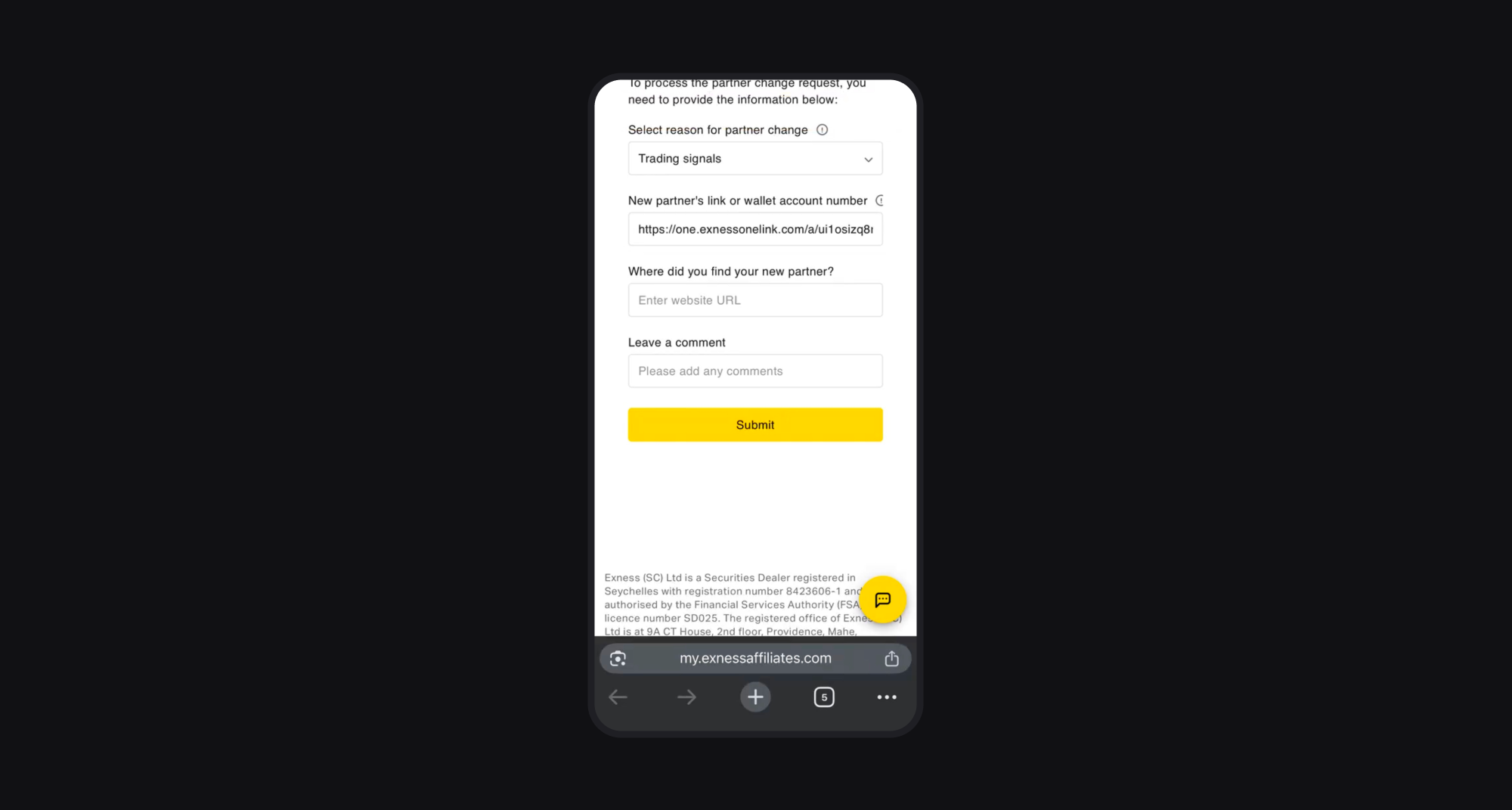
This usually takes about 5 minutes, though it can take up to 3 business days in rare cases. Refresh the page after a few minutes to check the status.
Step 6: Create a new real trading account
Once the partner link is successfully updated, you’ll need to create a new real trading account in Exness. This new account will be automatically linked to Elirox.
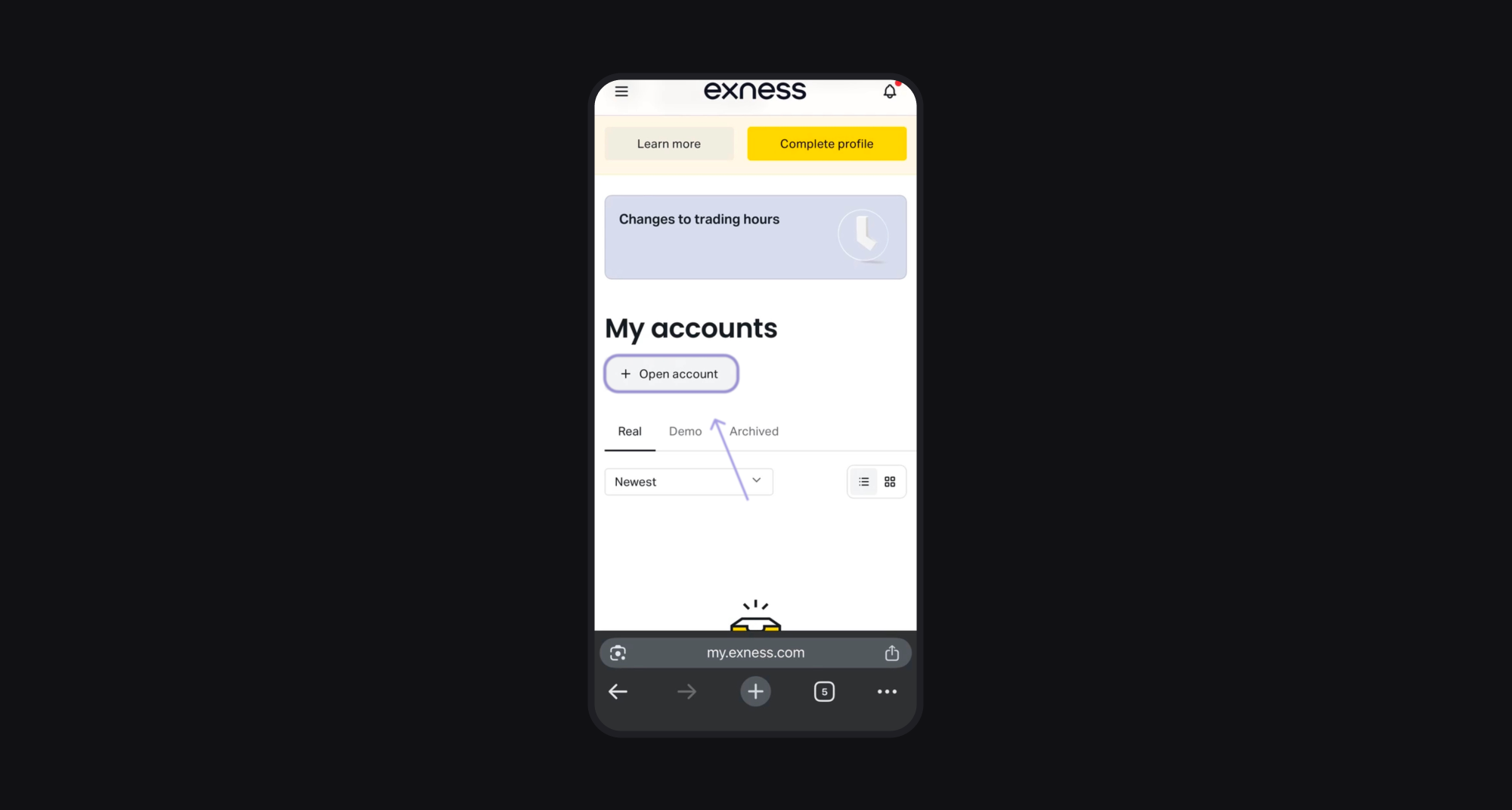
Your new trading account is now ready to be connected to Elirox. The final step is to fund your account. Make a deposit or transfer funds from your existing Exness accounts.
After that, you can start using Elirox’s automated trading features right away.