
Elirox Help Center
How to start trading with Elirox
Elirox is an automated trading app that lets you set up your strategy in minutes. With Elirox, you can do both: instantly set up your strategy using the AI Preset, which automatically selects optimal settings based on your chosen risk level, or fully customize your approach, whether you prefer DCA or GRID strategies.
How to choose a strategy
Elirox offers two powerful strategies: GRID and DCA, each tailored to different market conditions. Here’s how to decide which one works best for you:
📊 GRID
- Best for a market that moves back and forth or experiences pullbacks.
- Ideal for taking advantage of small fluctuations and locking in frequent profits.
- Places both buy and sell orders.
Want to know more? Read our full GRID strategy guide.
📈 DCA
- Best for trending markets where you want to average entries during pullbacks.
- Suitable for holding positions longer and closing when Take Profit is reached.
- Works well when you aim to build positions gradually in a strong trend.
Learn more in our DCA strategy guide.
Step-by-step guide to start trading with Elirox
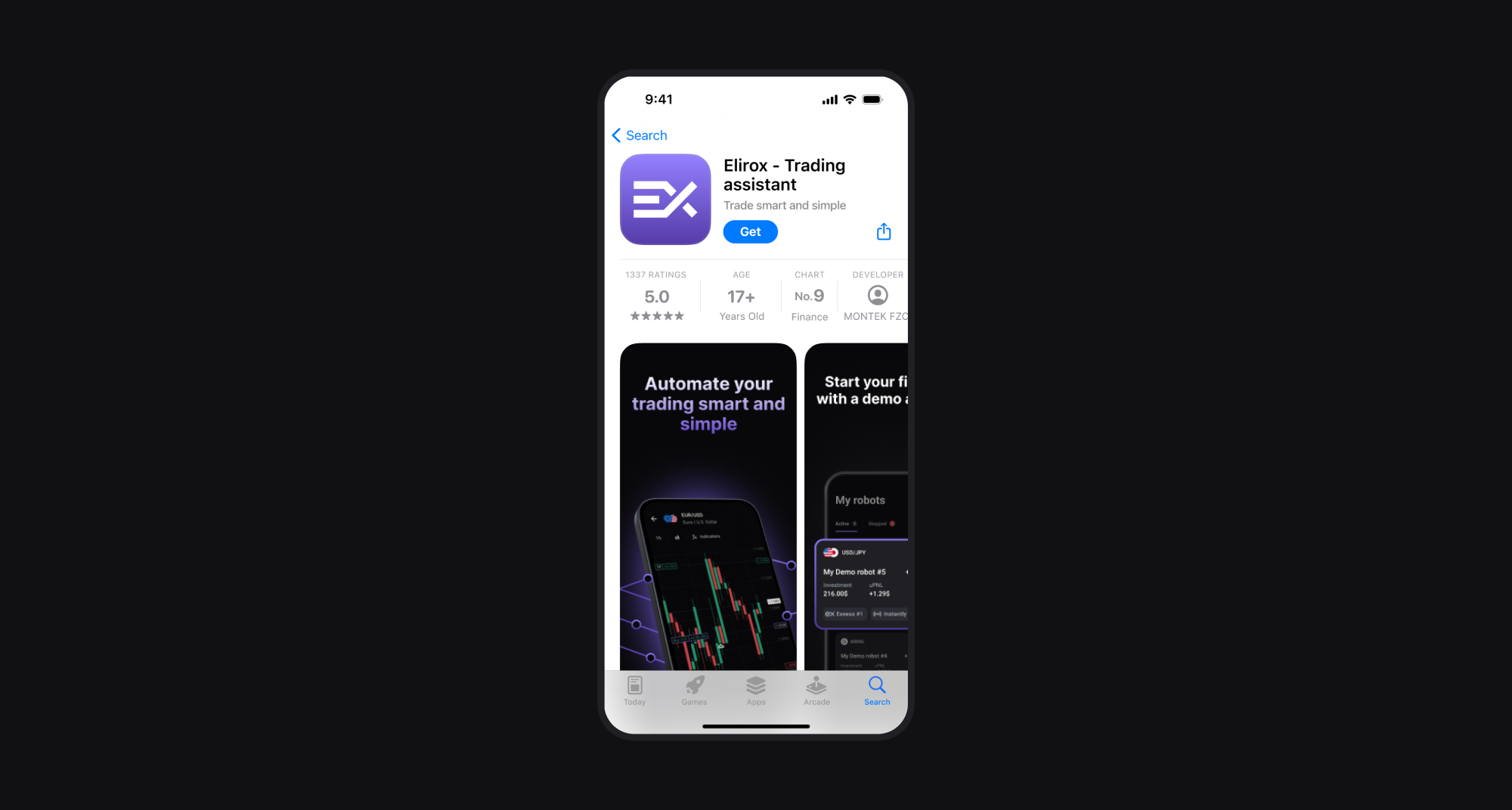
Step 1: Download the Elirox app
Get the Elirox app from the App Store or Google Play.
Step 2: Sign up
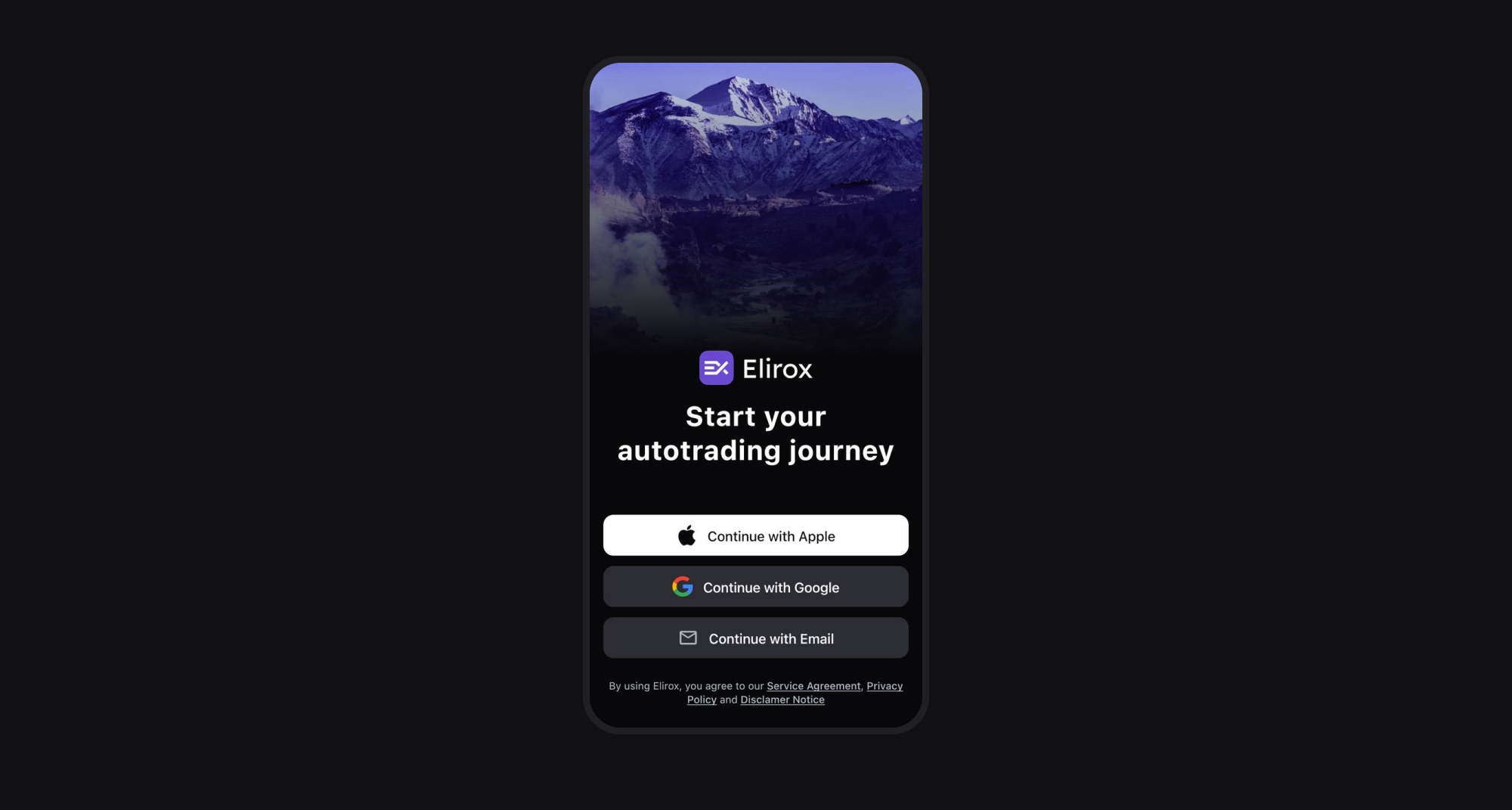
Open the app and sign up using a convenient method to begin your trading journey with Elirox.
Step 3: Choose your preferred broker
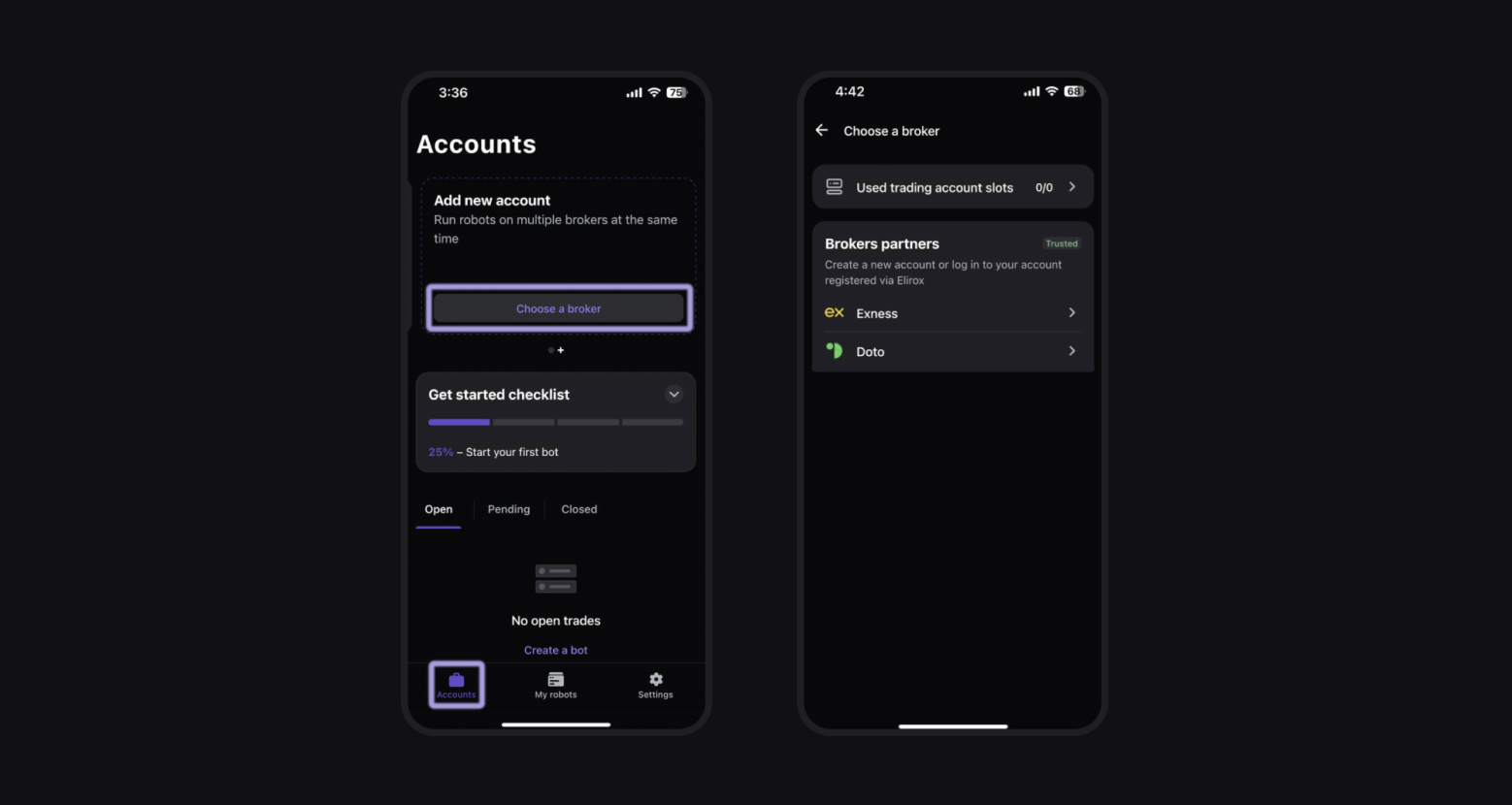
After registering, you’ll need to choose a preferred broker to use with the Elirox app. To do so, click Choose a broker on the Accounts page. Elirox partners with a variety of reputable brokers to ensure a smooth and reliable trading experience. Select the broker that best fits your needs and preferences.
Step 4: Create a broker account
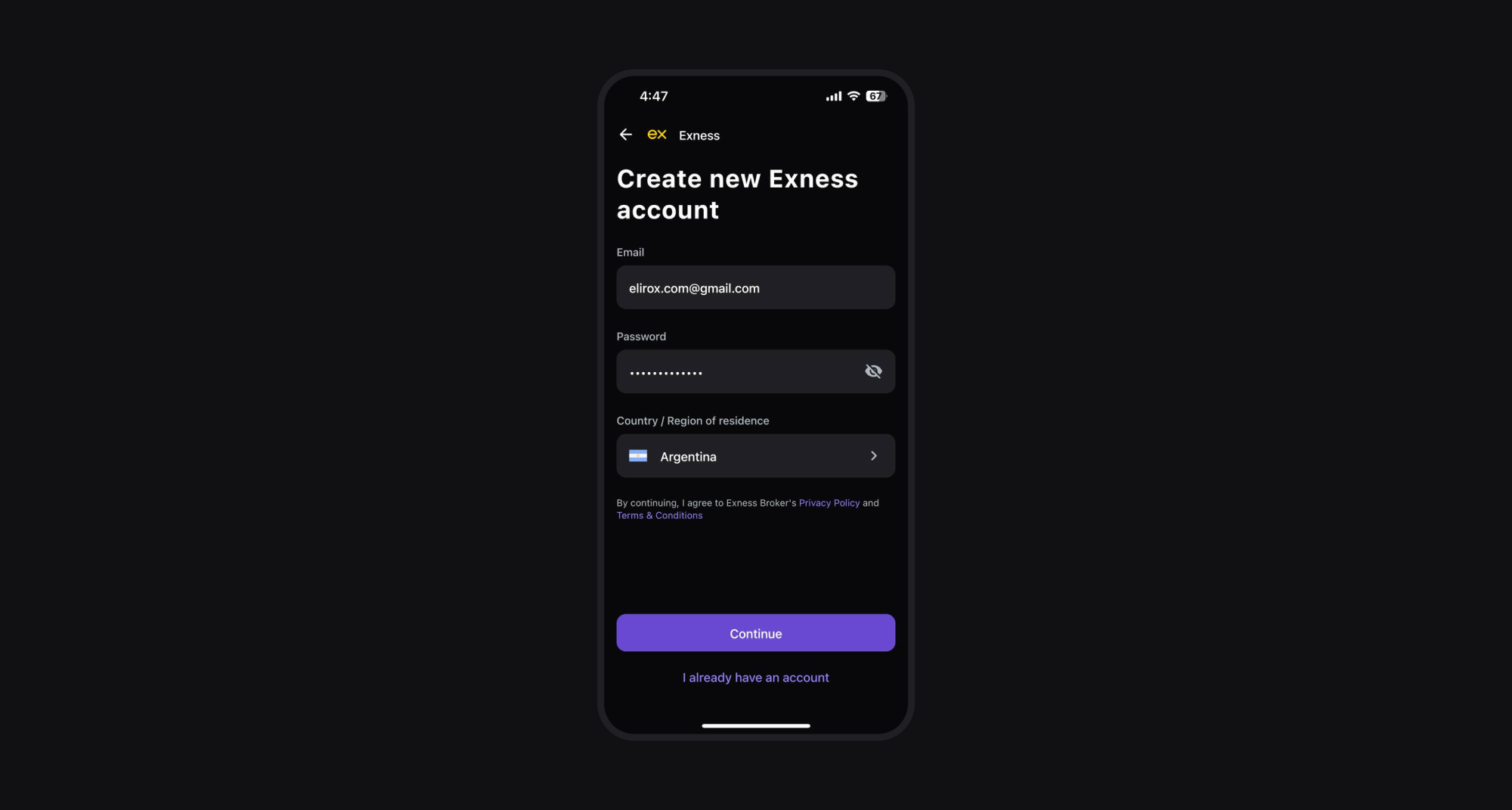
Once you’ve chosen a broker, you’ll need to create a trading account. This can be done directly through the Elirox app, so there’s no need to visit the broker’s website. You’ll need to provide your email, password, and country of residence. The connection process may vary slightly depending on the broker and might require email verification. Detailed guides on how to connect a broker account can be found in the broker connection guides.
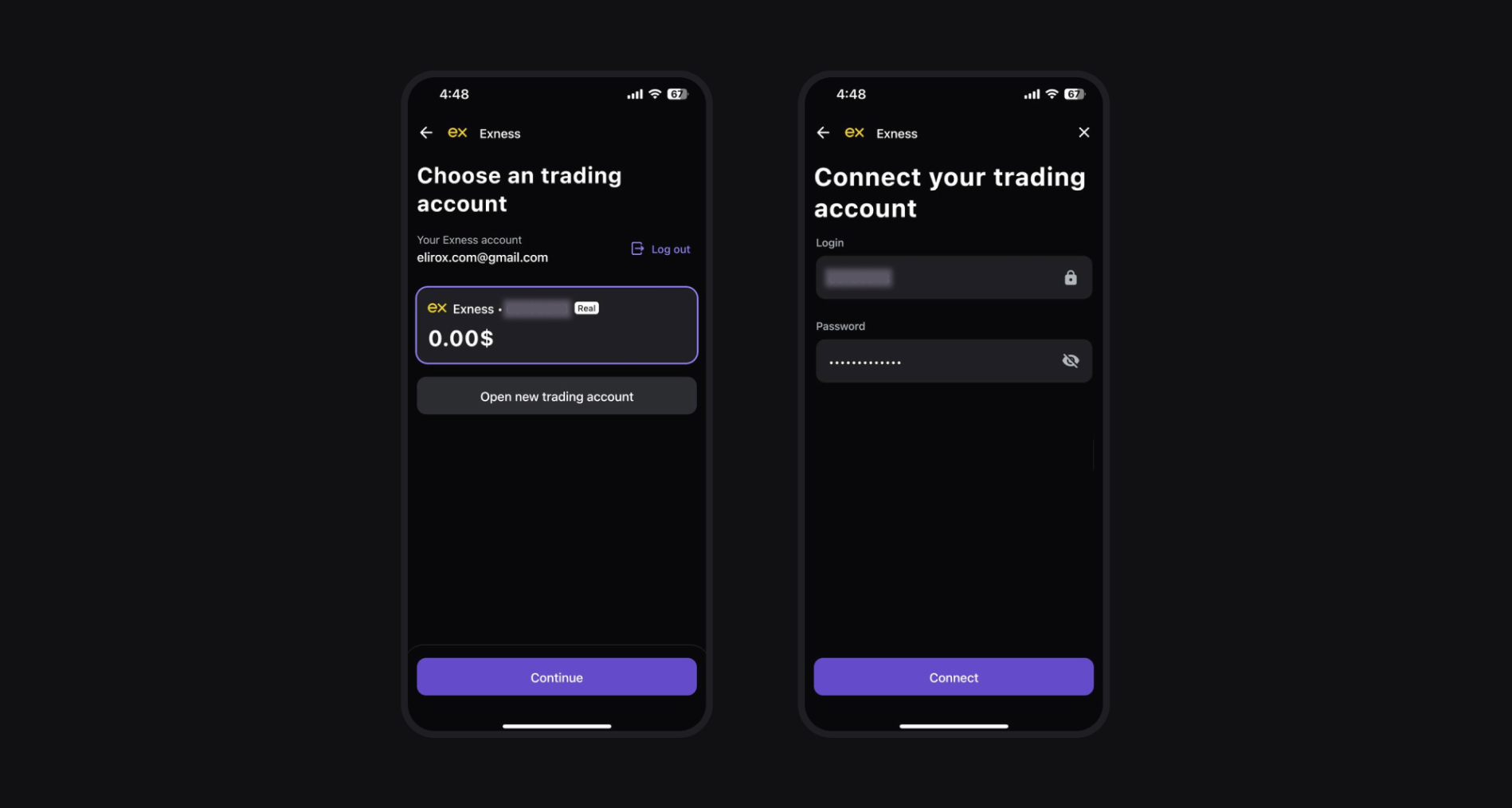
Step 5: Select a trading account
After creating a broker account, select the trading account you want to use in Elirox and click Continue. Enter the account password or the password sent to your email (depending on the broker) and click Connect. Other required details will be entered automatically.
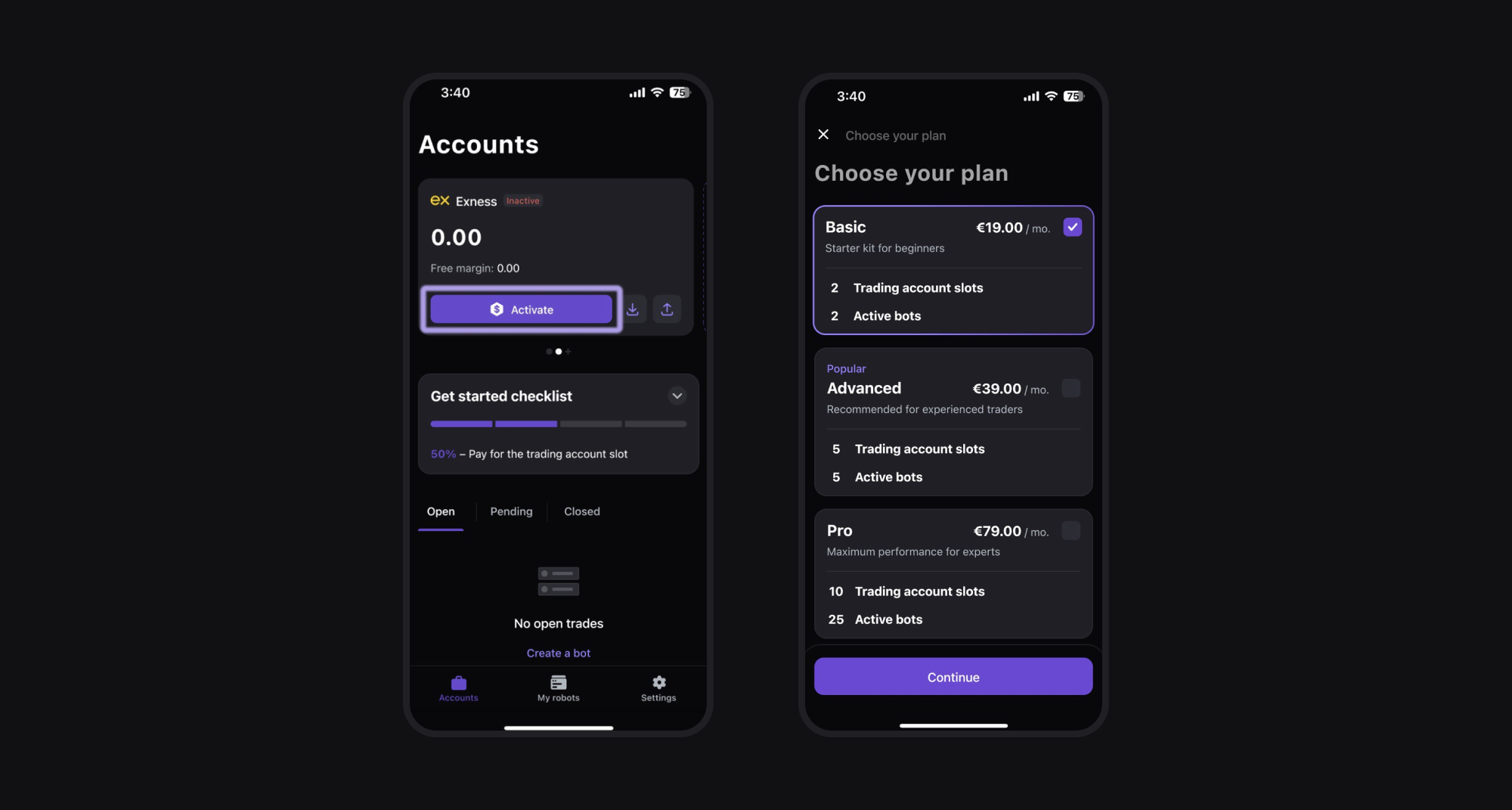
Step 6: Choose a payment plan and activate your account
After connecting your trading broker account, you need to activate it by choosing a subscription plan. To do this, click Activate under the newly connected account. Elirox offers various payment plans to suit different preferences and budgets.
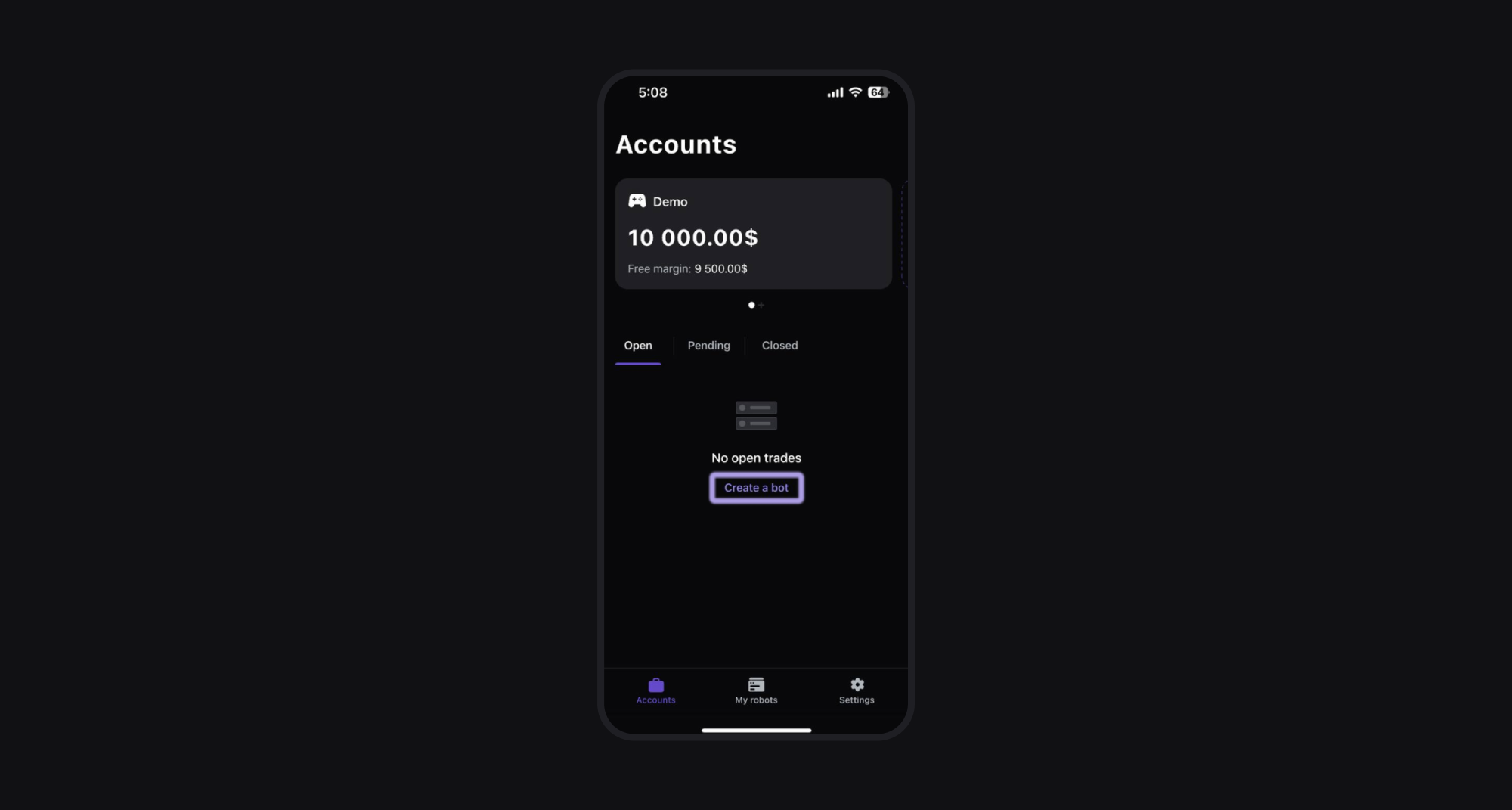
Step 7: Create a bot
Go to the Accounts page and click Create a bot to launch your first trading robot.
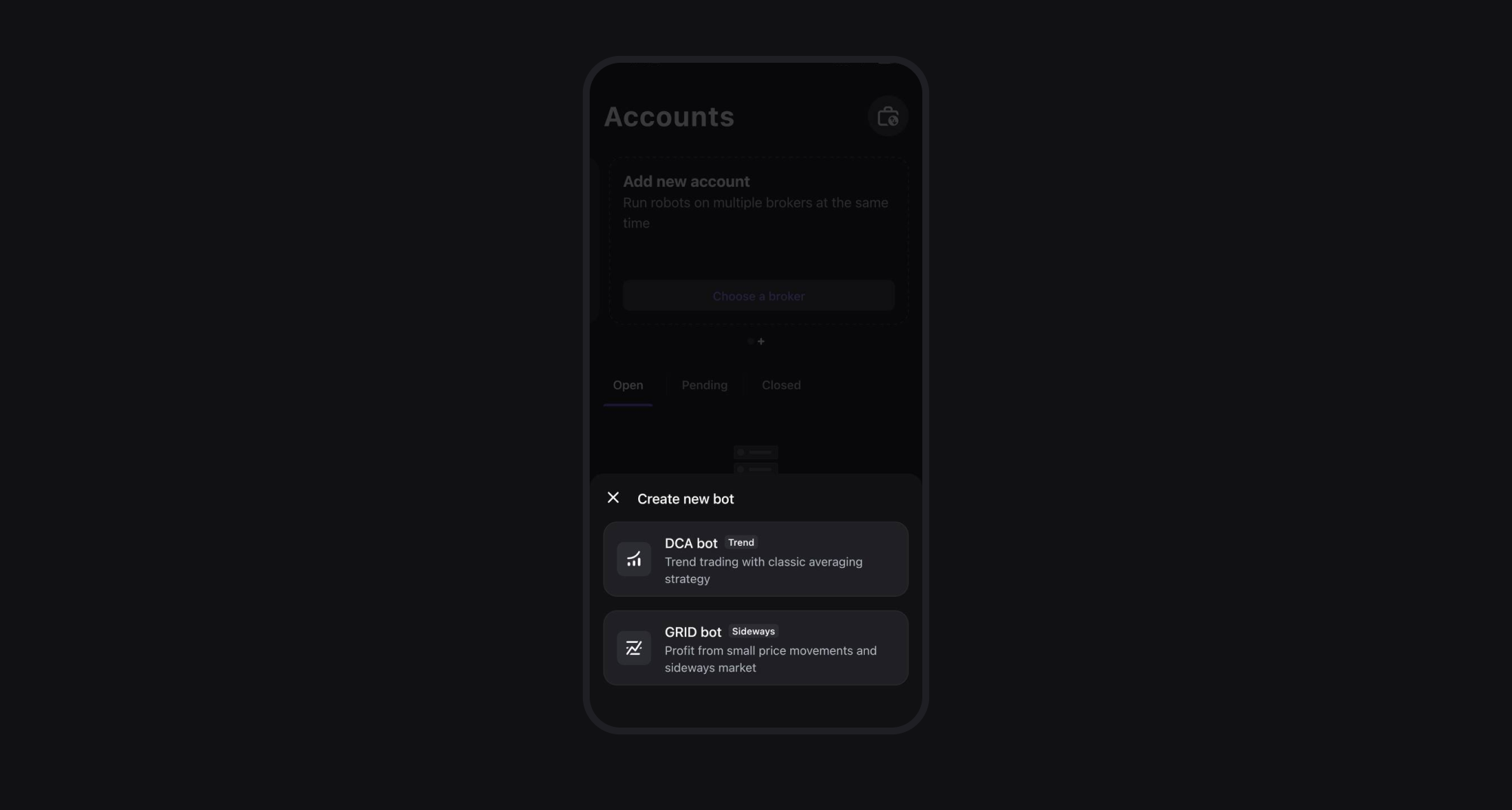
Step 8: Choose your strategy
Select the strategy you want to use — DCA or GRID. Detailed guides on both approaches can be found in the GRID and DCA strategy guides.
Step 9: Set up your bot
You’ll need to set the basics — asset, investment amount, and position type (for DCA). For both DCA and GRID, you can use the AI Preset feature, which automatically optimizes the rest of the parameters. There are three preset types, each with increasing risk levels and potential rewards: Conservative, Optimal, and Aggressive.
If you prefer more control, you can opt for manual setup. Simply click Customize parameters to choose this option. For more details on manual setup, refer to our guides in the Robots & Trading section.
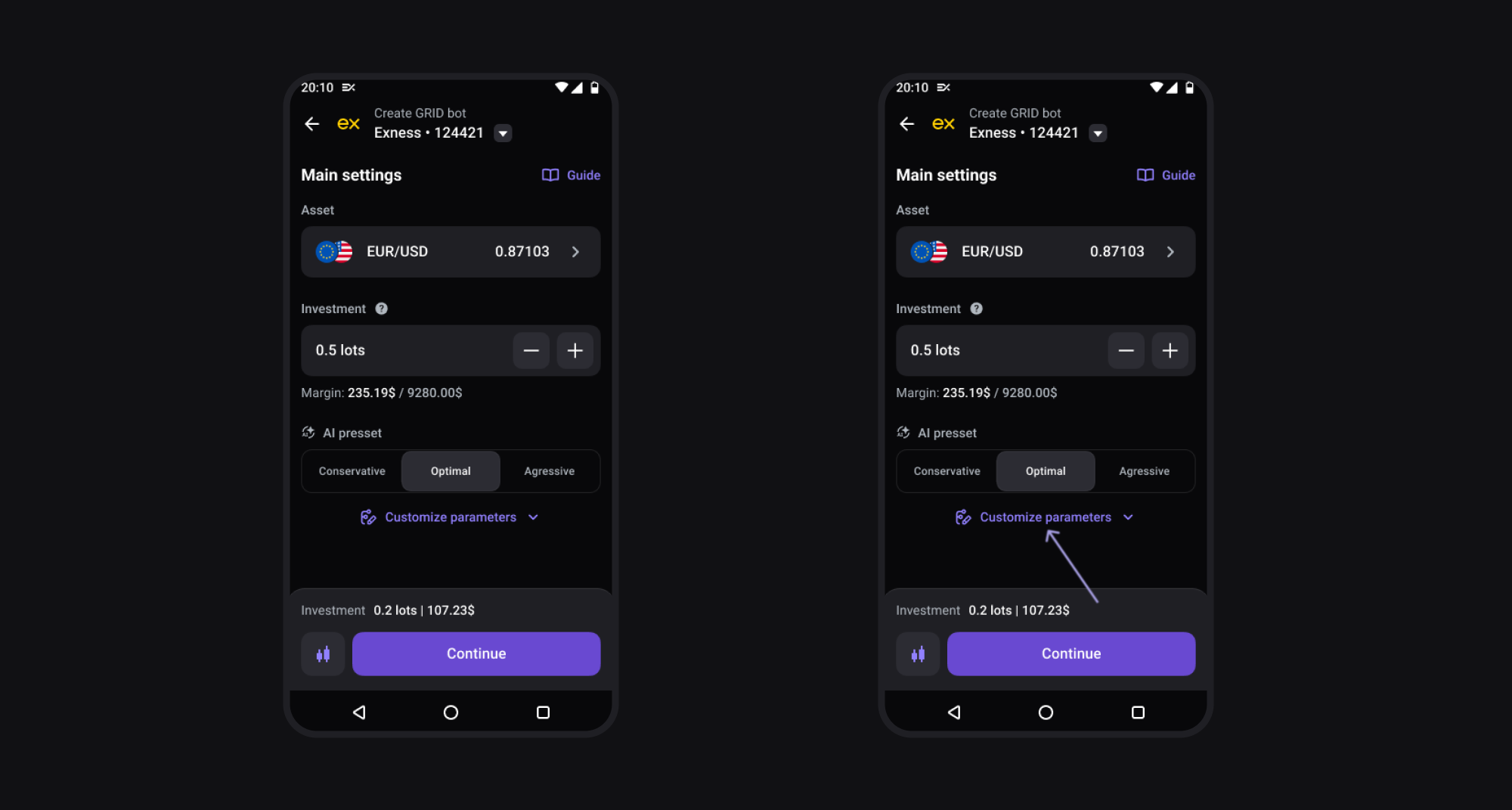
When you’re done, click Continue, review all the settings carefully to ensure everything is correct, and then proceed to start the trading bot.
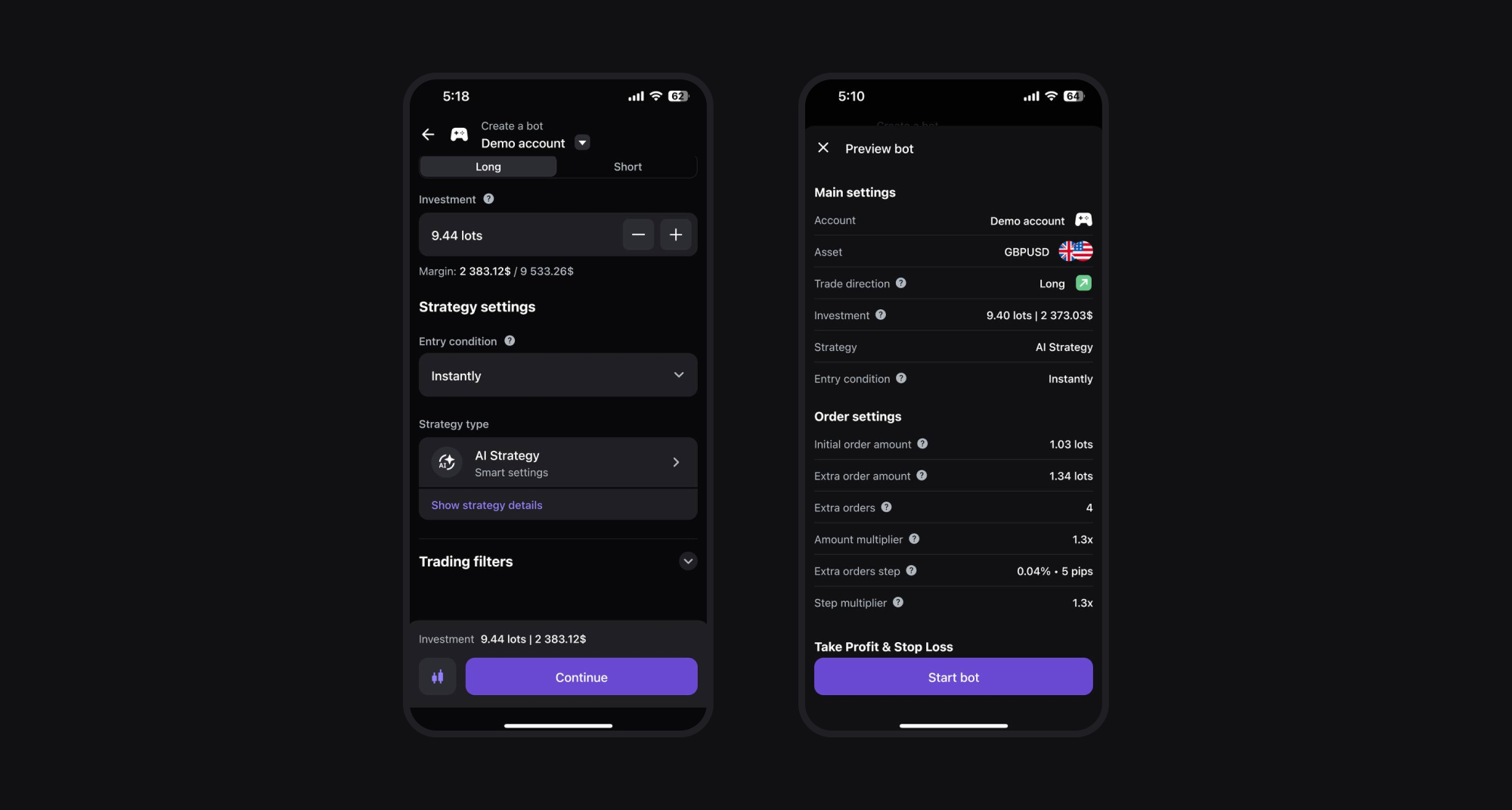
Congratulations! You’ve successfully started trading with Elirox.
Track the robot’s perfomance
You can monitor all your bots’ open, pending, and closed orders directly on the Accounts page. To view the performance of a specific bot, go to the My Robots page and select the bot you want. There, you’ll find:
- Trade charts
- Trade history
- Profit charts
- Key metrics
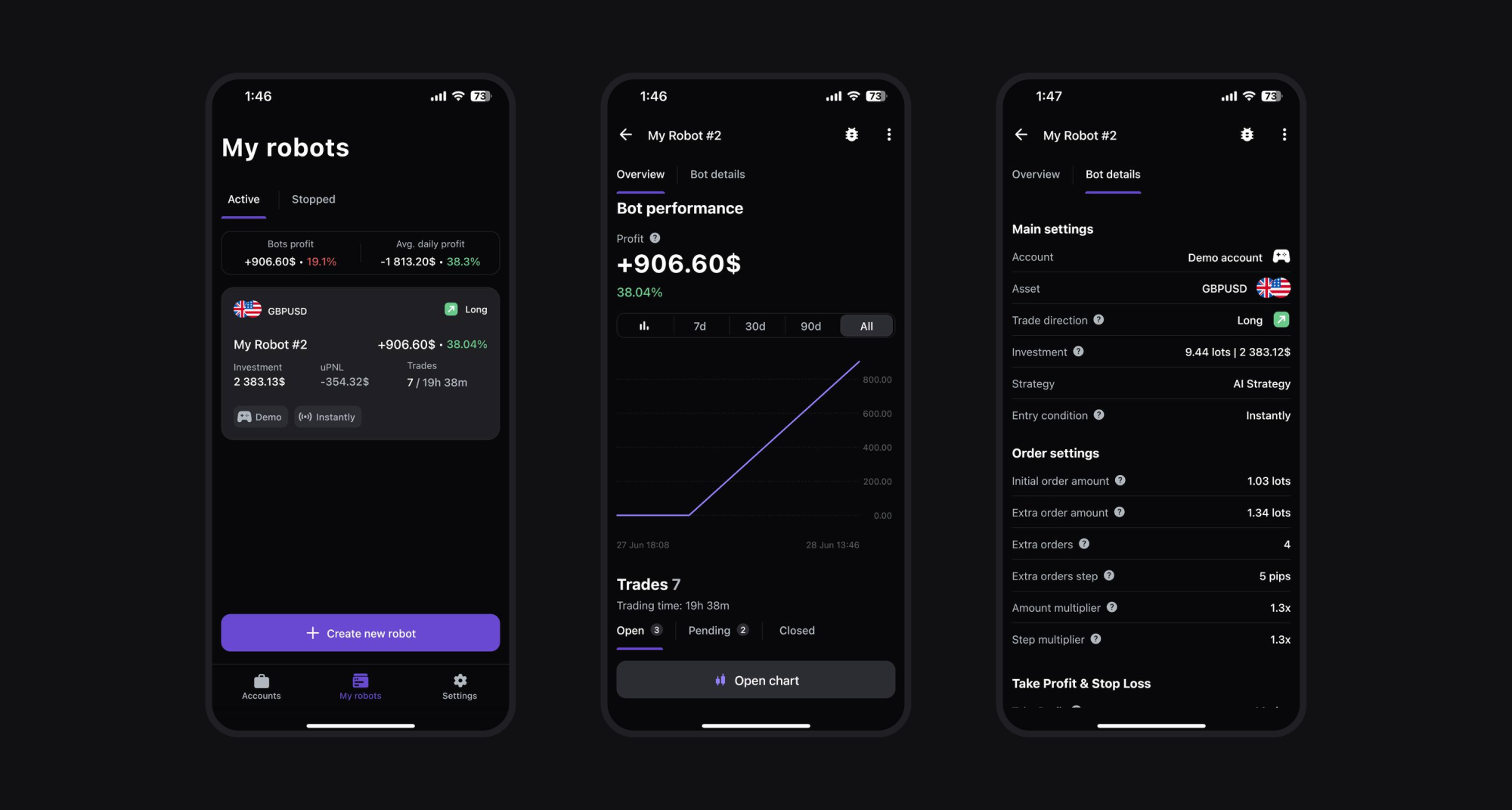
Bot orders
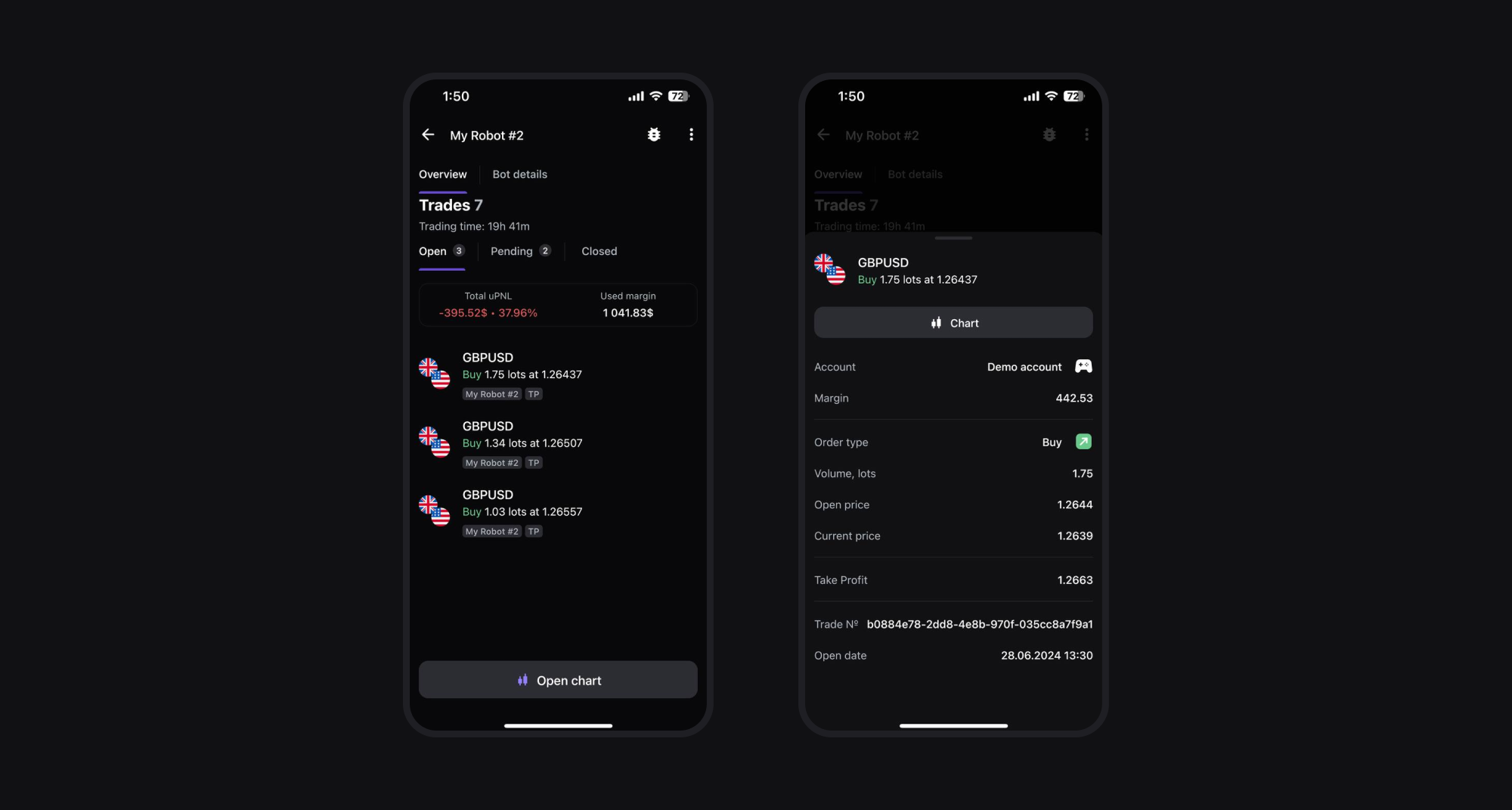
To view bot orders in detail, open the trade history of the specific bot, select the trade you want to examine, and scroll down to see information including:
- Account used for the order
- Margin utilized
- Order type
- Volume in lots
- Open price
- Current price
- Take profit level
- Trade number
- Date of the trade’s opening
How to stop the robot
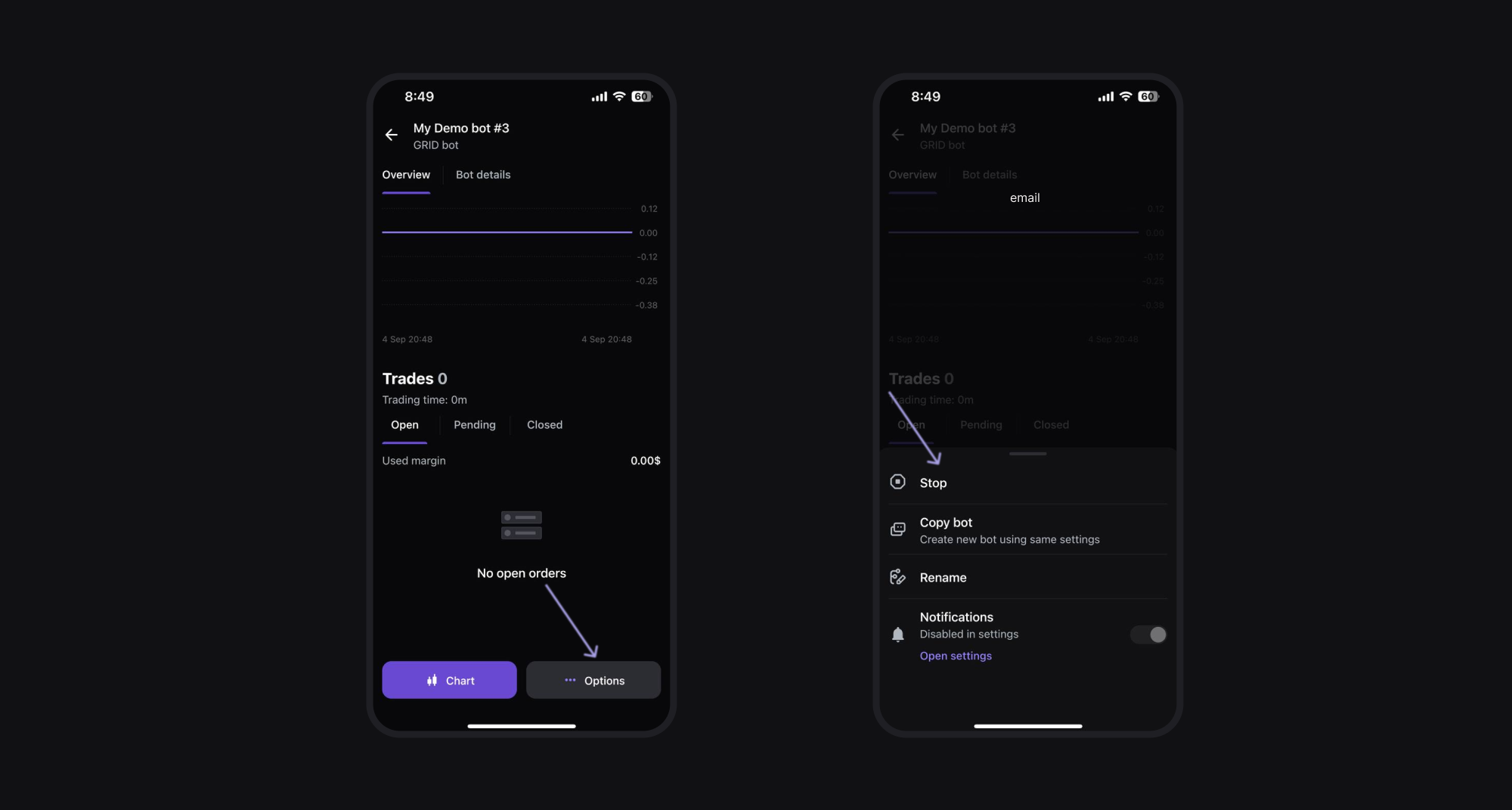
To stop the trading robot, click the Options button and select Stop.
Once stopped, your trading funds will automatically return to your account balance, simplifying deposit and withdrawal management with your broker. You can easily restart the trading bot whenever you’re ready to continue your trading journey.
If you need assistance with a bot or its settings, feel free to contact our support team.