
Elirox Help Center
Customize GRID bot parameters
🔑 Quick Overview of the Elirox GRID Bot:
- Automatically places buy and sell orders at set price levels within a chosen range.
- Generates profit from market fluctuations by executing frequent trades, regardless of direction.
- Lets you adjust the settings to match your trading style and align with your trading journey.
Customizing GRID bot parameters
This guide will walk you through the process of setting up a GRID trading bot in the Elirox app. If you’re just getting started with the GRID strategy or want to explore it in more detail, take a look at our guide on how GRID works.
Step 1: Main settings
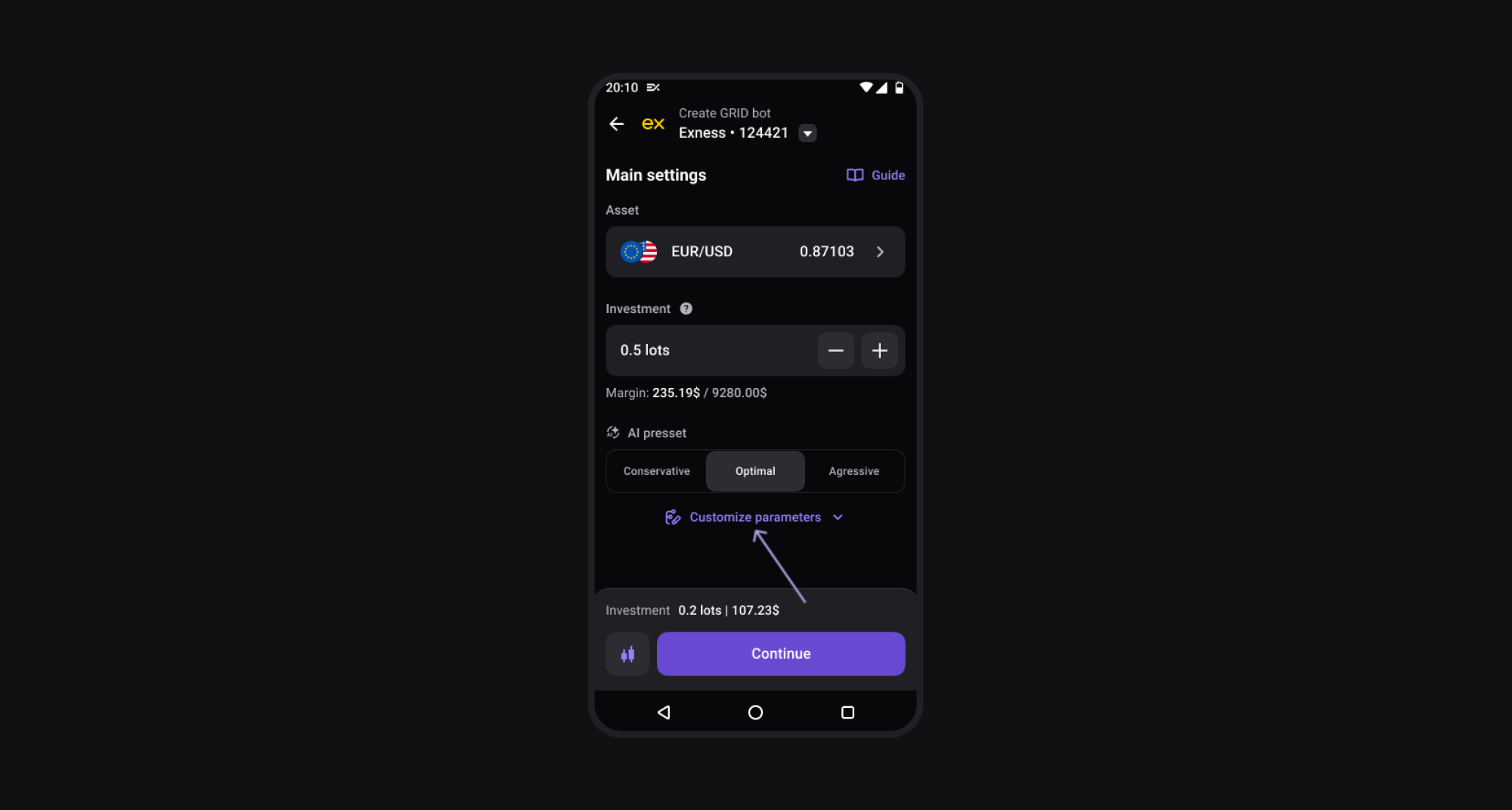
In the main settings, you can configure:
- Asset: Select the financial instrument (e.g., currency pair) you wish to trade.
- Investment: Define the total investment amount allocated to the bot.
- AI Preset: Use the AI Preset to automatically set the optimal parameters for your strategy, with three modes based on your risk level.
Conservative — Fewer trades with wider spacing between orders, offering lower risk.
Optimal — A balanced setup with moderate spacing and trade frequency.
Aggressive — More frequent trades with tighter spacing, carrying higher risk but also greater potential returns.
Alternatively, you can switch to manual setup. Just press Customize parameters to enable this mode.
Step 2: Grid settings
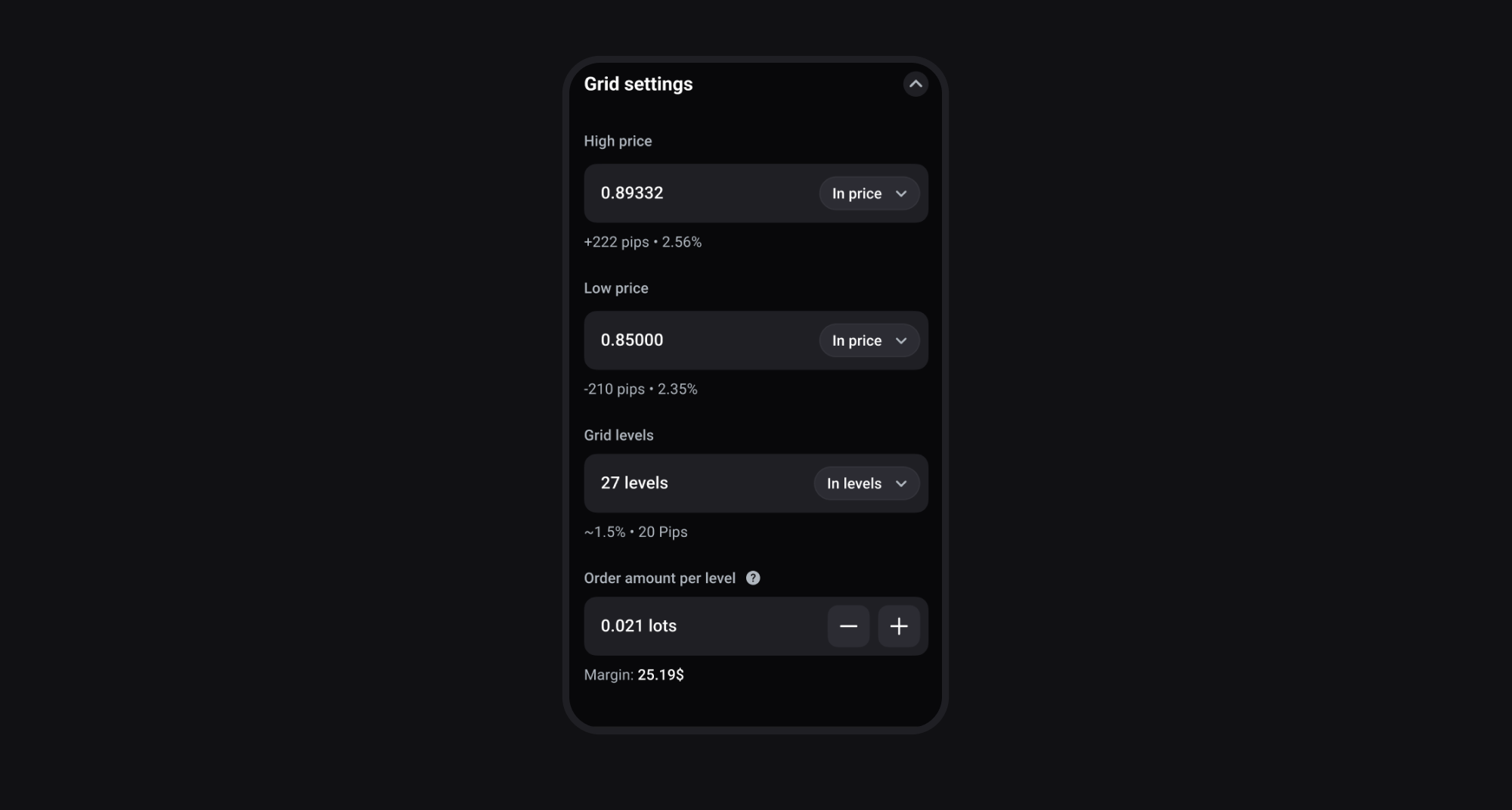
Once you’ve selected your strategy style, you can also configure the grid itself:
- High price: The upper limit of your grid. The bot won’t open trades above this level.
- Low price: The lower limit of your grid. The bot won’t open trades below this level.
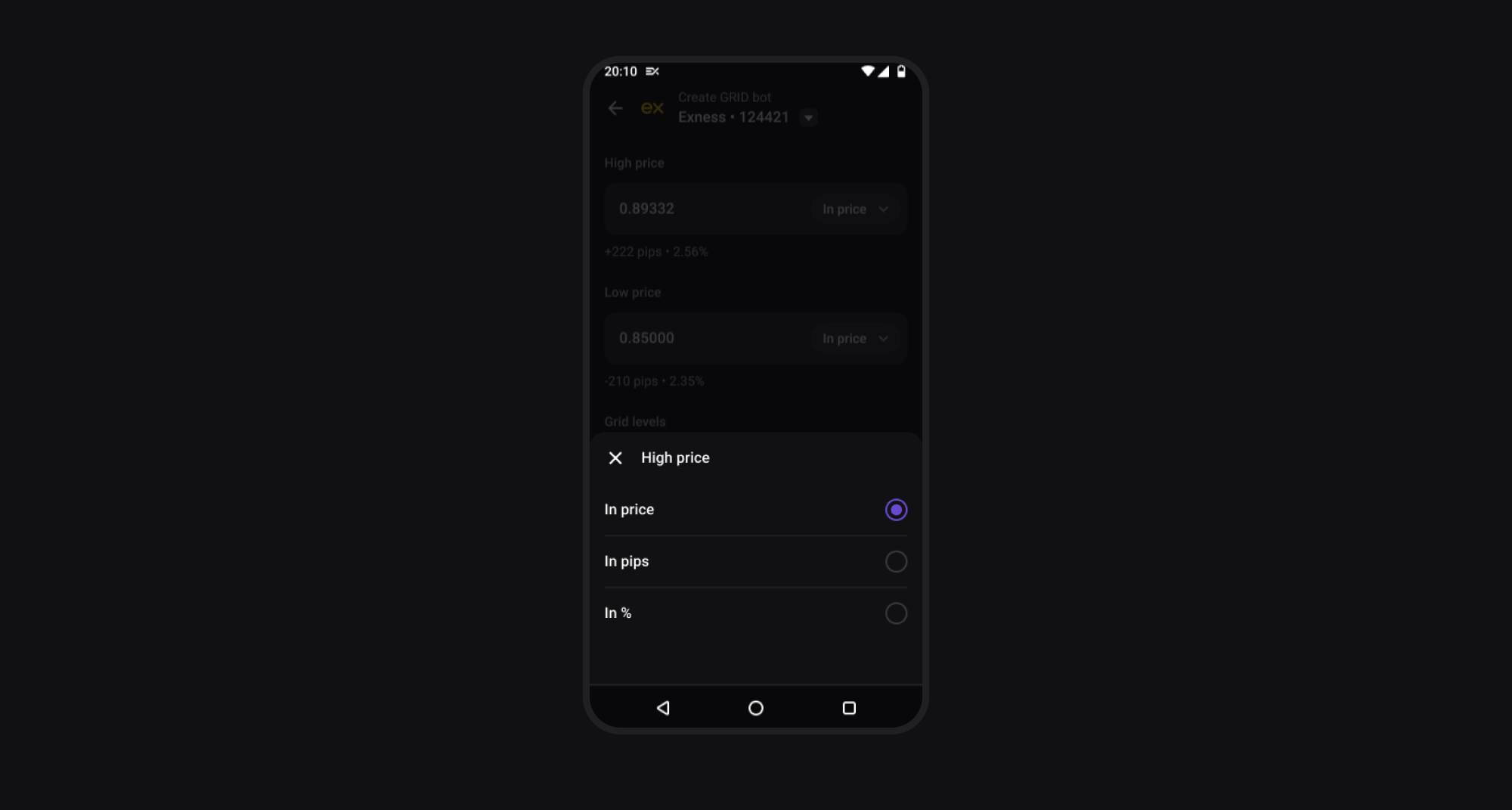
You can set both High and Low prices in different ways:
- Price: Enter a specific value.
- Pips: Set a distance in pips from the current price.
- %: Define a percentage above or below the current price.
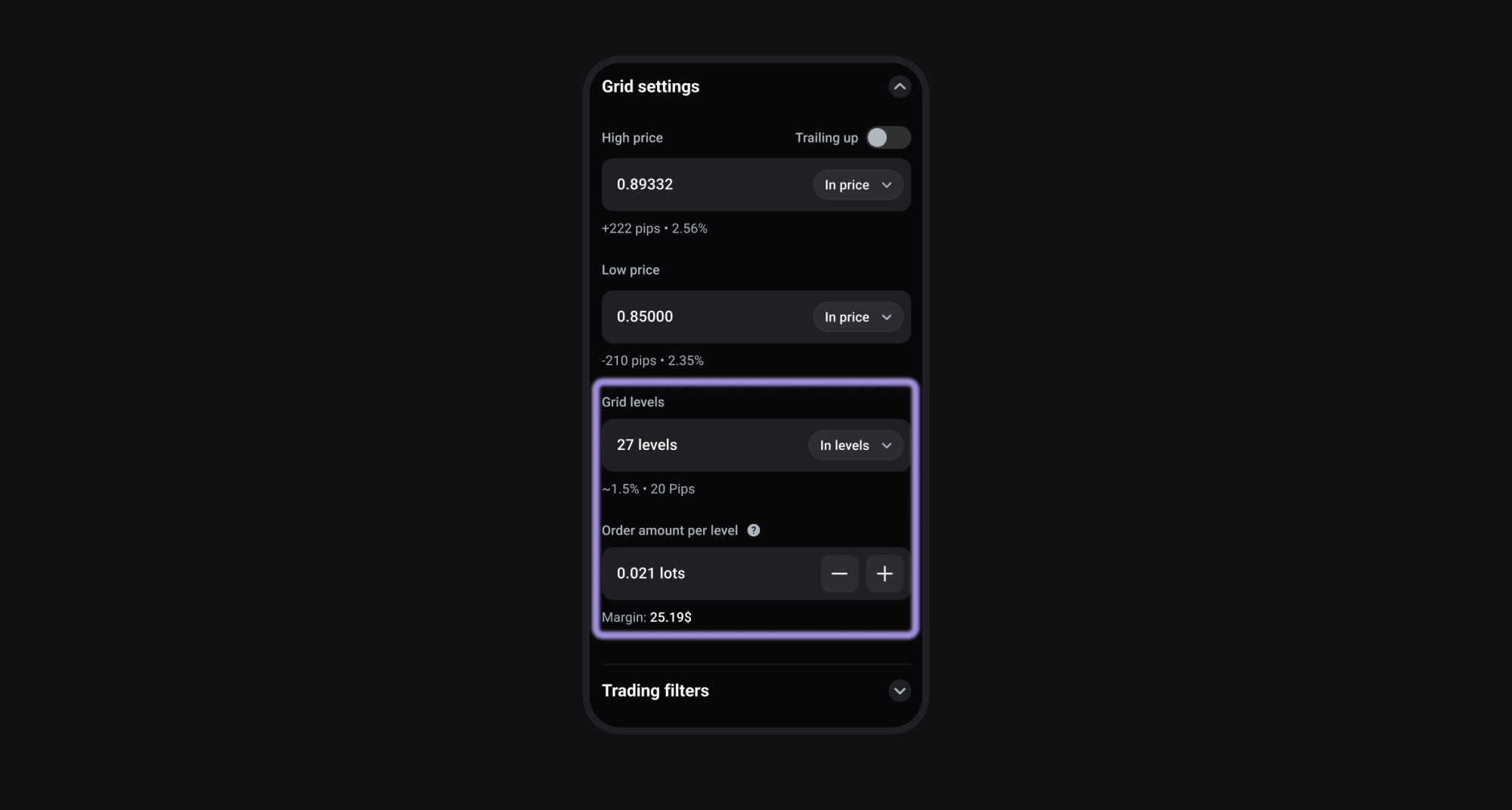
Adjust the level settings:
- Grid levels: Define how many orders the bot will place between your High and Low price levels. You can set this by number of levels, pips, or percentage.
- Order amount per level (in lots): Set the size of each order, adjusting it to your deposit, risk tolerance, or trading goals.
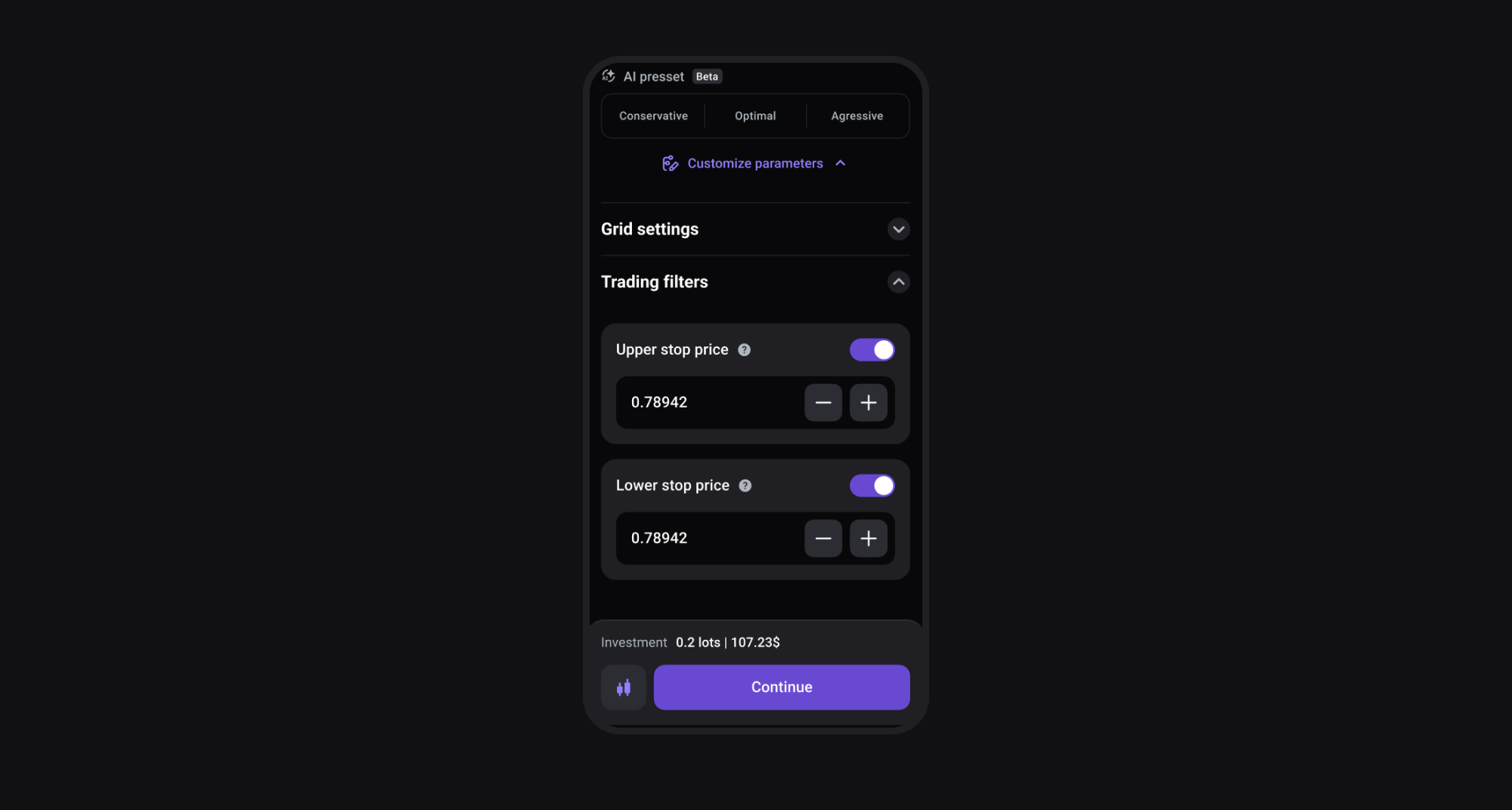
Step 3: Trading filters
In this step, you can set additional limits to control where the bot is allowed to trade and help manage risk:
- Upper stop price: If the market rises above this level, the bot stops trading to avoid overbought or unstable conditions.
- Lower stop price: If the market falls below this level, the bot stops trading to avoid sharp downtrends or extreme volatility.
Step 4: Check the result
At any stage of setup, you can visualize your trading bot strategies on the chart to see how the bot will operate with the current settings.
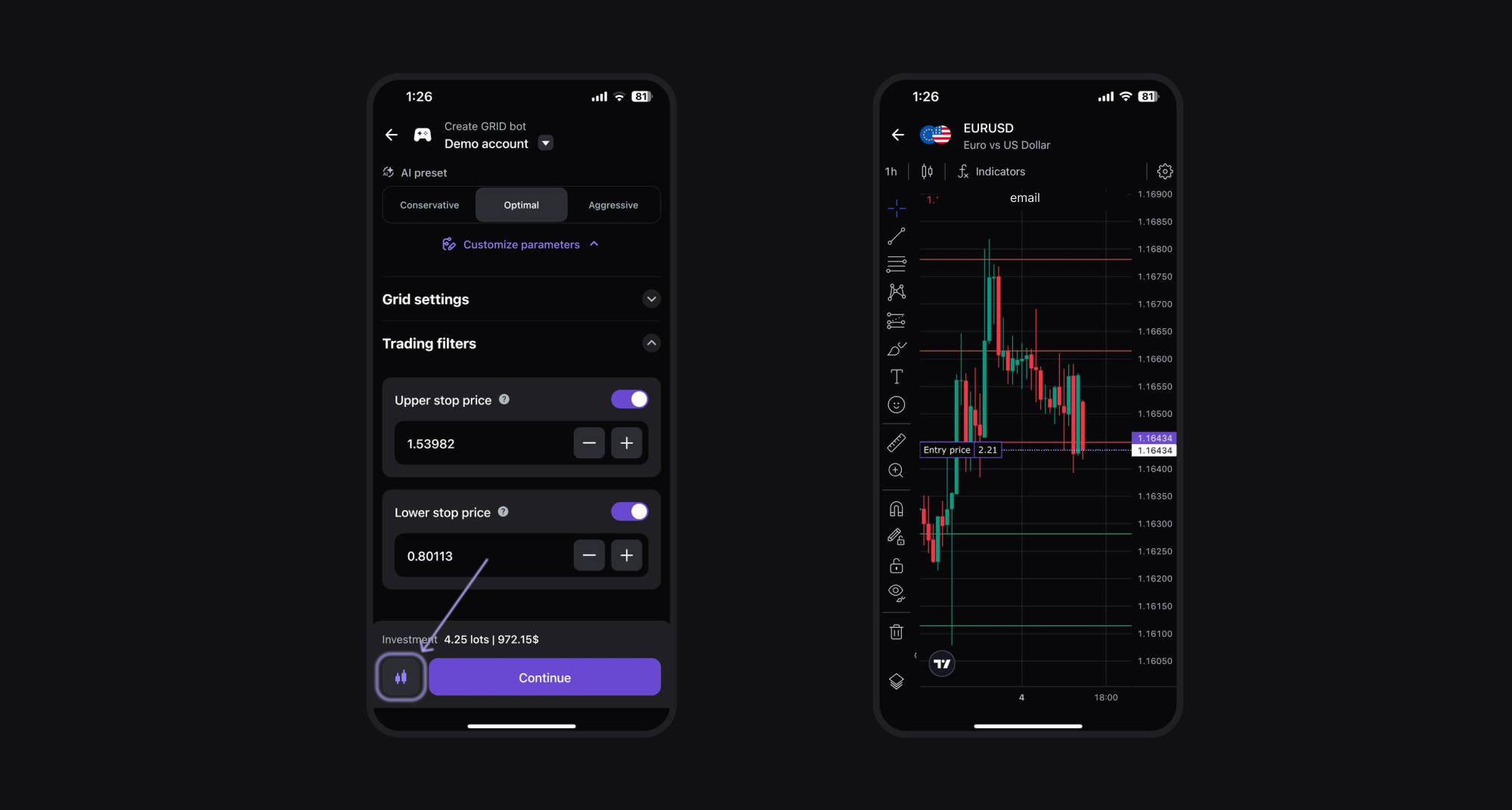
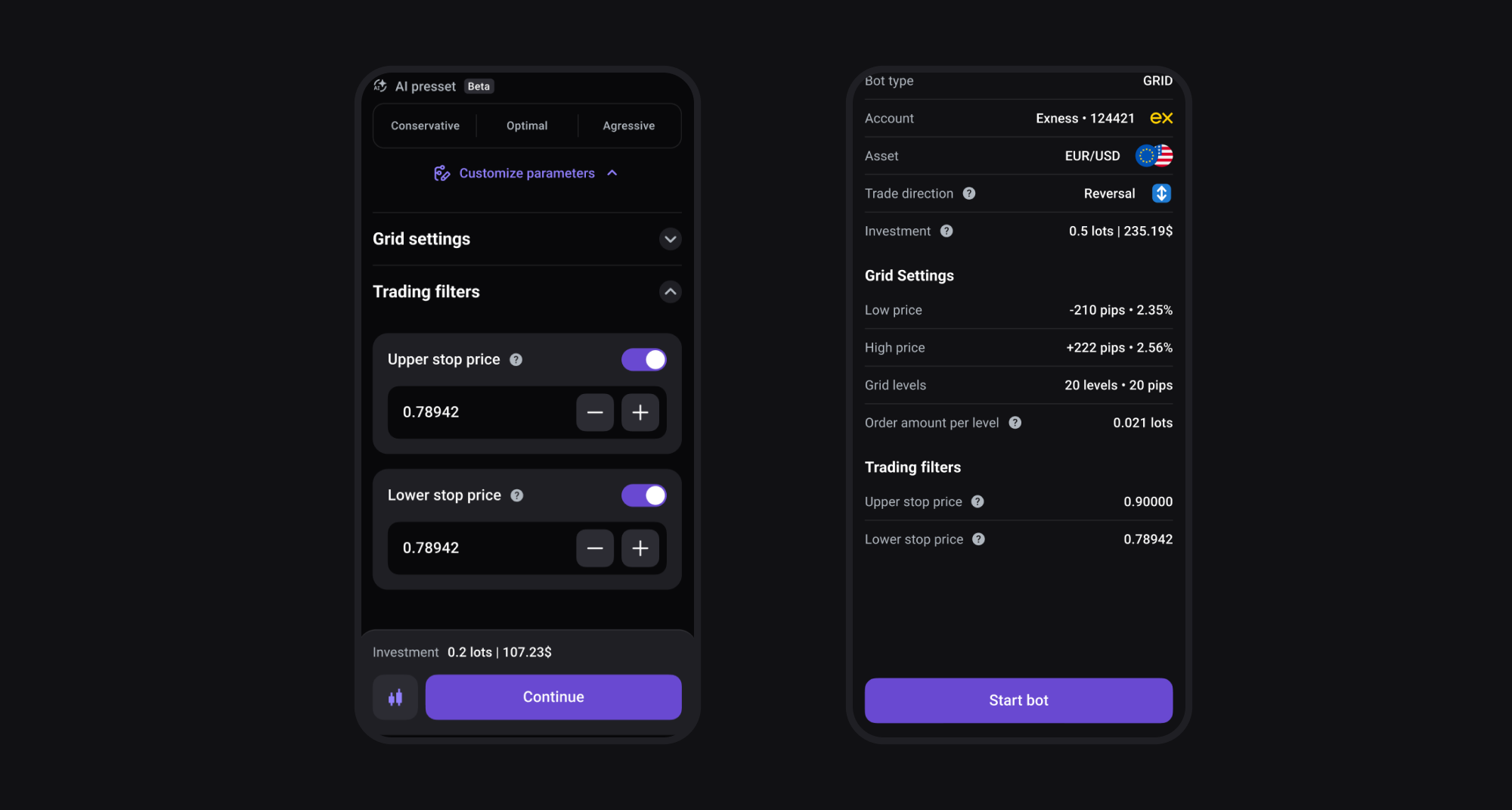
When you’re satisfied with the setup, click Continue to review your settings and start trading with your GRID bot.
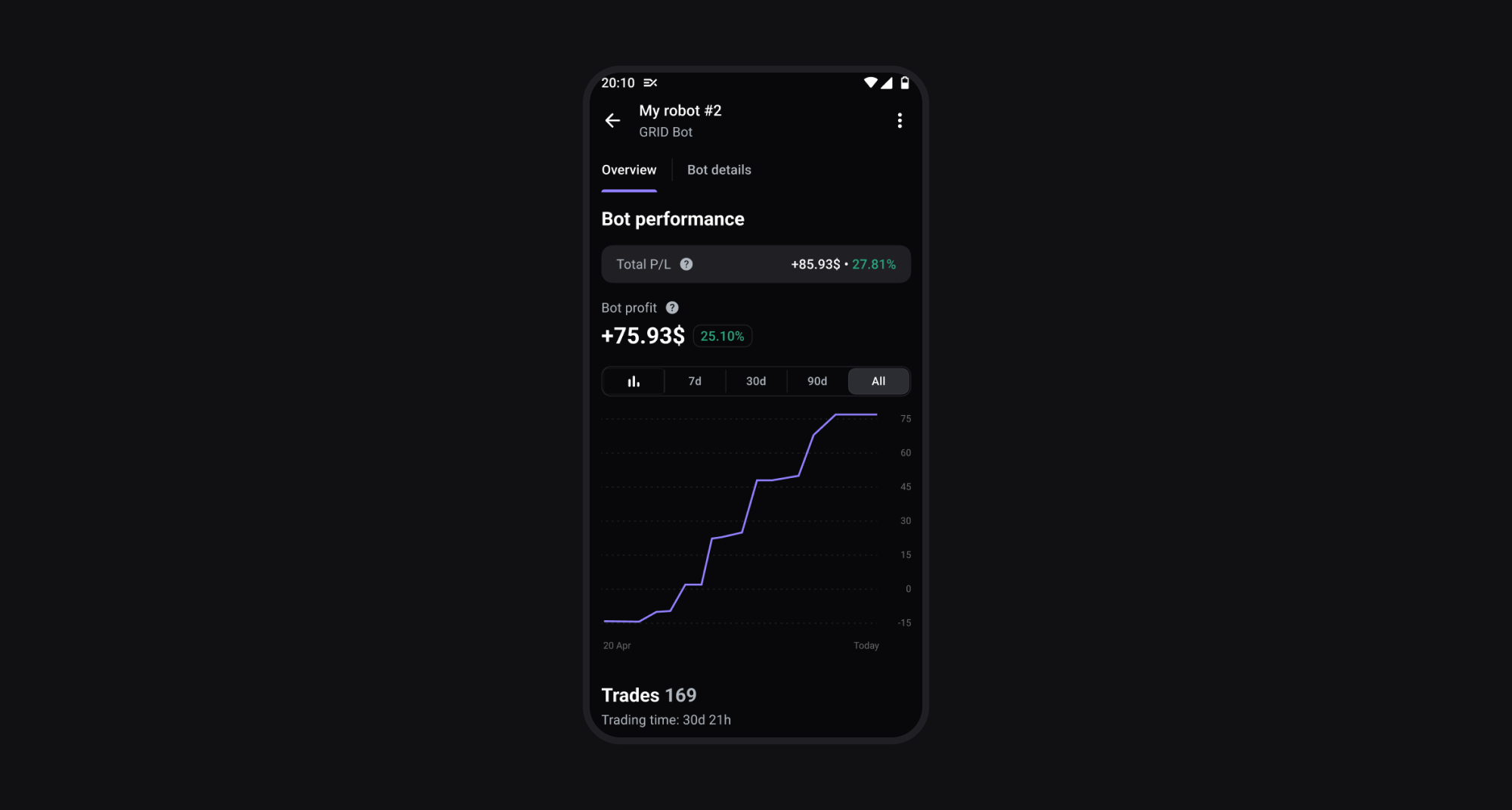
If you have any issues or questions about the GRID robot, its settings, or managing deposit and withdrawal activities linked to your bot, you can always contact our support team.