
Elirox Help Center
How to Connect Other Brokers
In Elirox, you can connect your broker’s MT5 trading account and use it for automated trading.
Step 1: Check if Your Broker Supports MT5
Check your broker’s website or contact their support team to confirm that they offer MetaTrader 5 accounts.
⚠️ MT4 accounts are not supported.
Step 2: Get Your Login Details
After opening a trading account with your broker, save the following connection details:
- Server — for example, BrokerName-MT5.
- Login — your trading account number.
- Password — use the trading account password, not the investor password, so Elirox can place trades.
Where to Find Your Connection Details: A STARTRADER Example
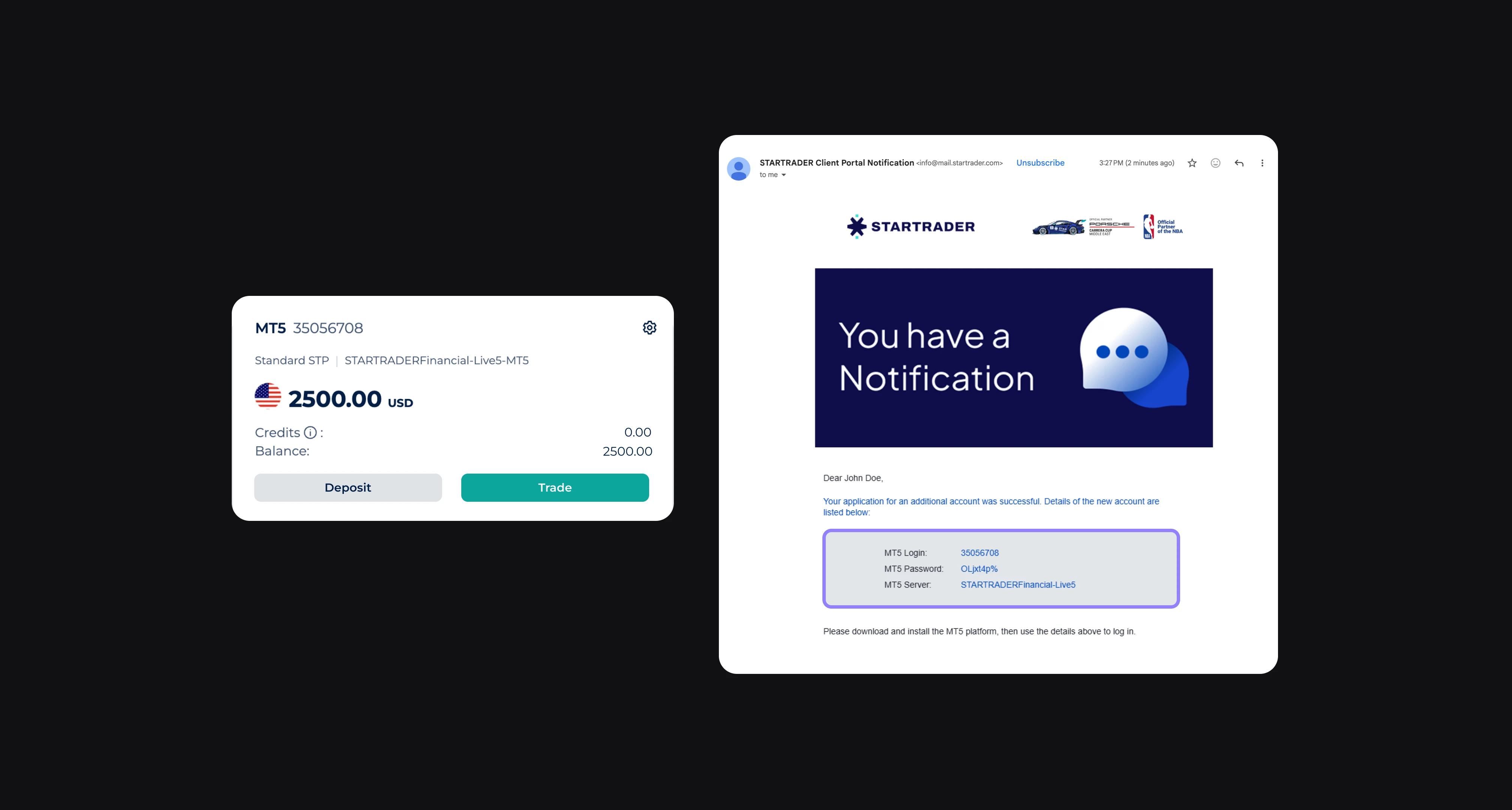
The location of these details depends on your broker. For example, STARTRADER displays the Login and Server on the trading account card in its app, such as account 35056708 on STARTRADERFinancial-Live5-MT5.
The trading account password is provided in the email sent when the account is created. If you use STARTRADER, search your inbox for its account details email and look for MT5 Login, MT5 Password, and MT5 Server.
For other brokers, check the account details section in their app or client portal, or the account confirmation email. Copy the details exactly into the matching fields in Elirox.
Step 3: Connect the Account in Elirox
- Open the Elirox app.
- Go to Choose a broker → Manual connection.
- Select your broker from the list.
- Enter your Server, Login, and Trader password.
💡 Tip: If your broker does not appear in the list, enter the server manually. Elirox works with most MT5 brokers, even if they are not shown in the preset list.
Step 4: Launch the Bot
Once your trading account is connected:
- Select a DCA or GRID strategy.
- Configure the bot parameters.
- Launch the bot to start automated trading.