
Elirox Help Center
Customize DCA bot parameters
🔑 This is a quick overview of what the Elirox trading bot can do:
- Find the right moment to open and execute a trade based on one technical indicator.
- Make orders grids for every cycle to improve average entry prices.
- Manage risk and adapt to market changes using a smart trading strategy.
Learn how to launch your Elirox DCA automated trading bot in the step-by-step trading guide.
Customized trading with Elirox
In this article, we’ll walk you through setting up a DCA trading bot using all the features available in the Elirox app. If you’re new to the DCA principle or want to deepen your understanding, be sure to check out our guide on how DCA works and how it can improve your trading strategy.
Step 1: Main settings
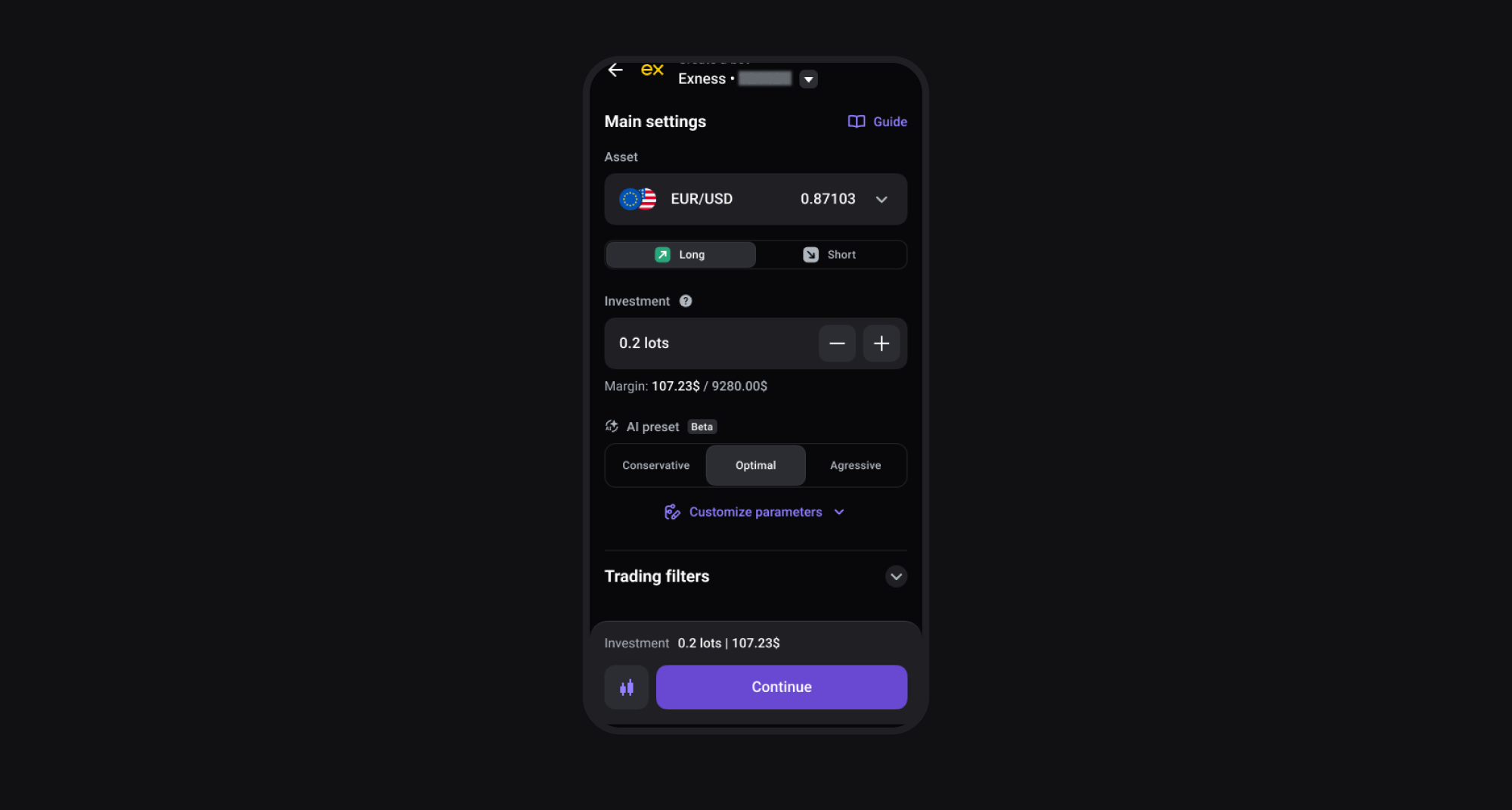
In basic settings, you can choose:
- Asset: Select the financial instrument you wish to trade.
- Position Type: Choose between a long or short position.
📈 In a long position, you speculate that the base currency will strengthen against the quote currency.
📉 In a short position in Forex trading, you speculate that the base currency will weaken against the quote currency. - Investment: Define the investment amount in lots, ensuring it fits your overall trading deposit.
- AI Preset: You can use the AI Preset to automatically select optimal parameters for your strategy, with three modes based on your risk level.
Conservative — slower pace with more orders and wider spacing.
Optimal — a balanced approach that combines steady protection with consistent profit potential.
Aggressive — tighter steps and faster volume growth, aiming for higher potential returns while accepting greater risk.
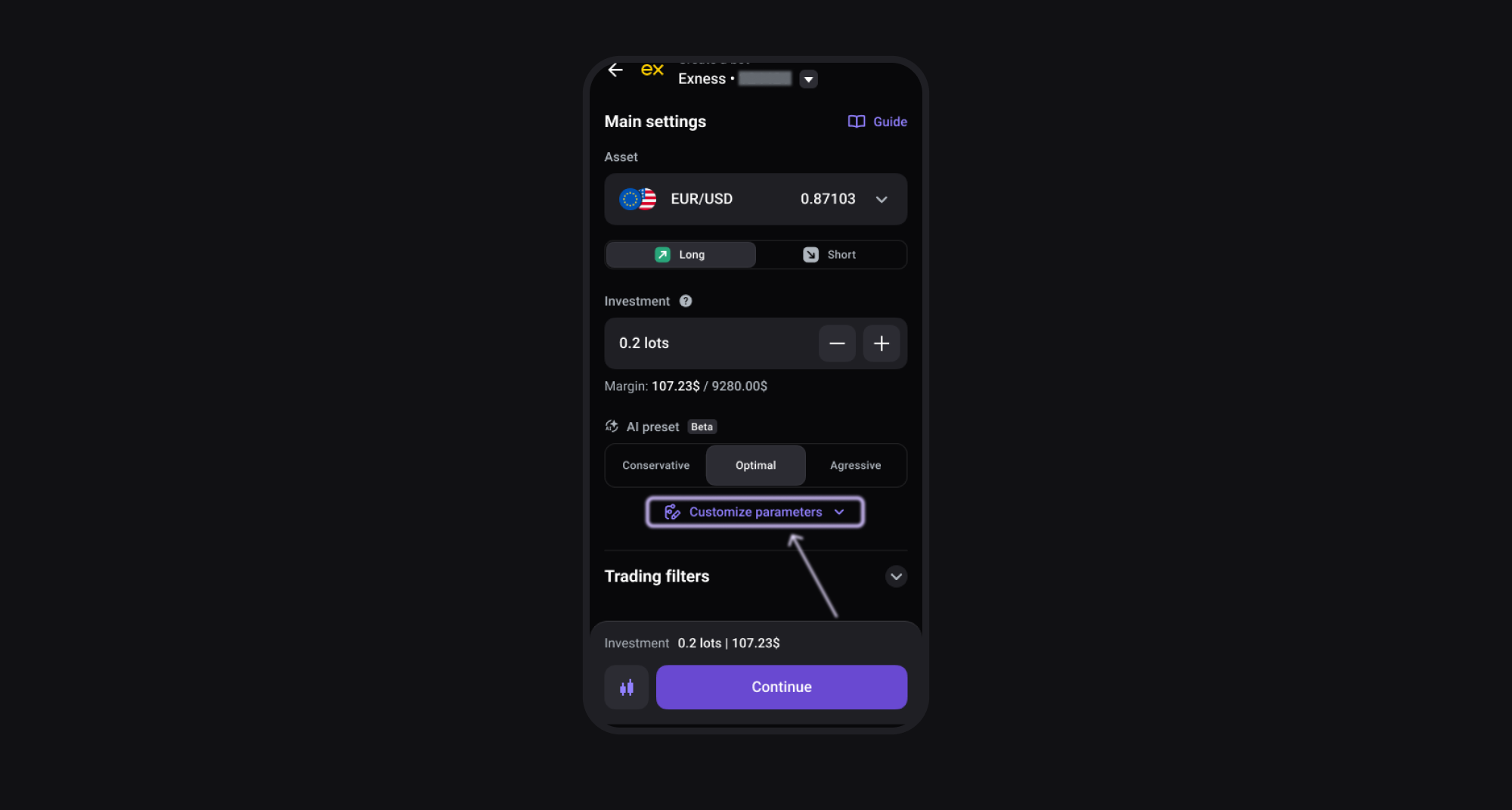
If you prefer more control over your strategy, you can switch to manual setup at this step by pressing the Customize parameters button. In customization mode, you can adjust order settings, Take Profit & Stop Loss, as well as trading filters.
Step 2: Order settings
At this stage, you can adjust order settings, choosing:
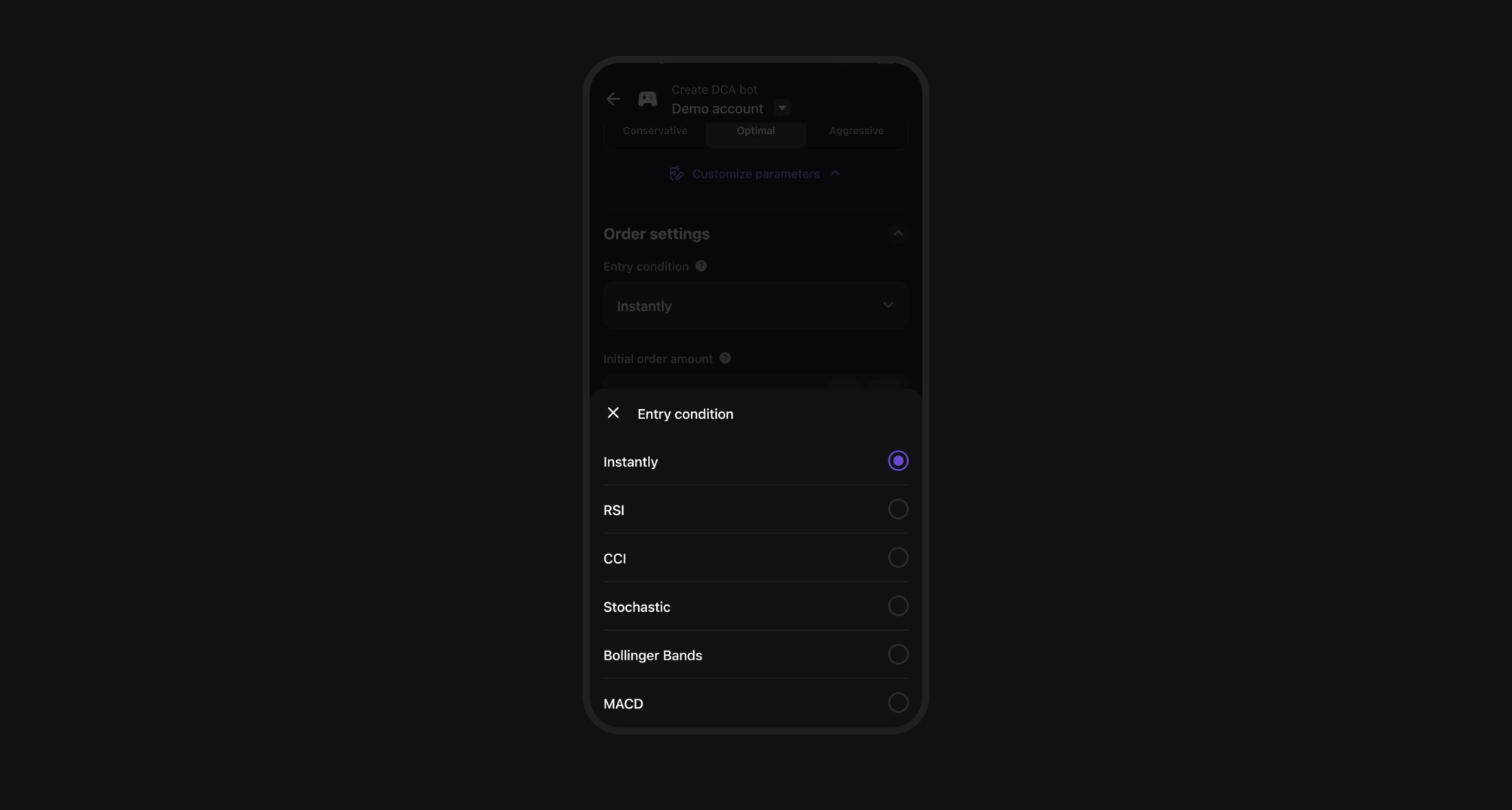
- Entry condition: The condition under which the robot opens the first trade. This can be either instantly (immediately after launch) or by an indicator signal such as RSI, CCI, Stochastic, Bollinger Bands, or MACD. In the latter case, the robot waits until the selected indicator generates a signal.
Want to learn more about how these indicators work as trading signals? See our guides on RSI Forex Strategy, Bollinger Bands Forex Strategy, and MACD Forex Strategy.
You can also adjust the timeframe for a selected indicator to better suit your trading strategy.
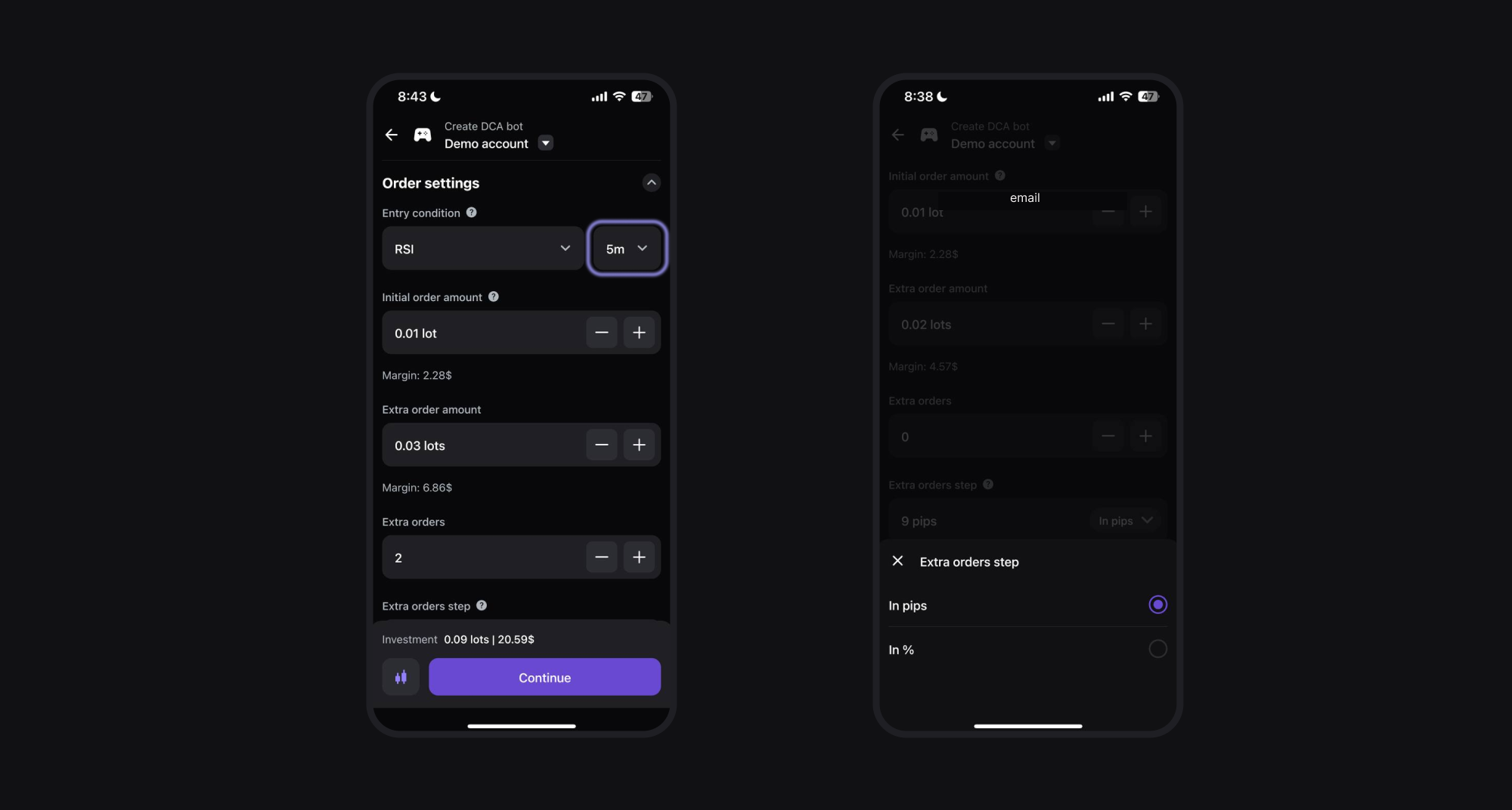
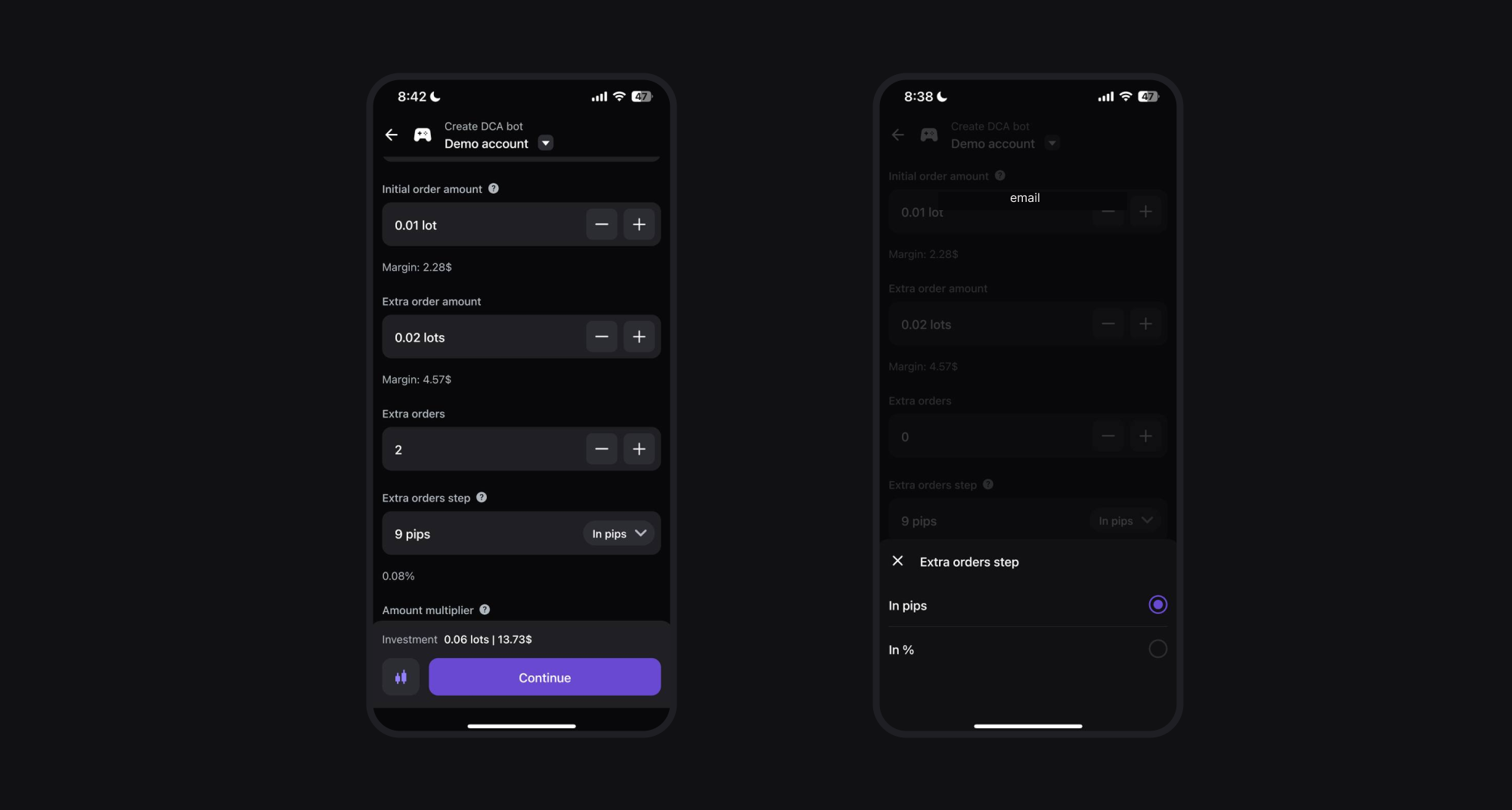
Next, you need to enter the initial order amount and set the parameters for extra orders.
- Initial order amount: Set the size of the initial order in lots.
- Extra order amount: Specify the size of the first averaging order.
- Number of extra orders: Define how many extra orders will be placed in the grid.
- Extra orders step: Set the distance from the initial order and between averaging orders, in pips or percentages.
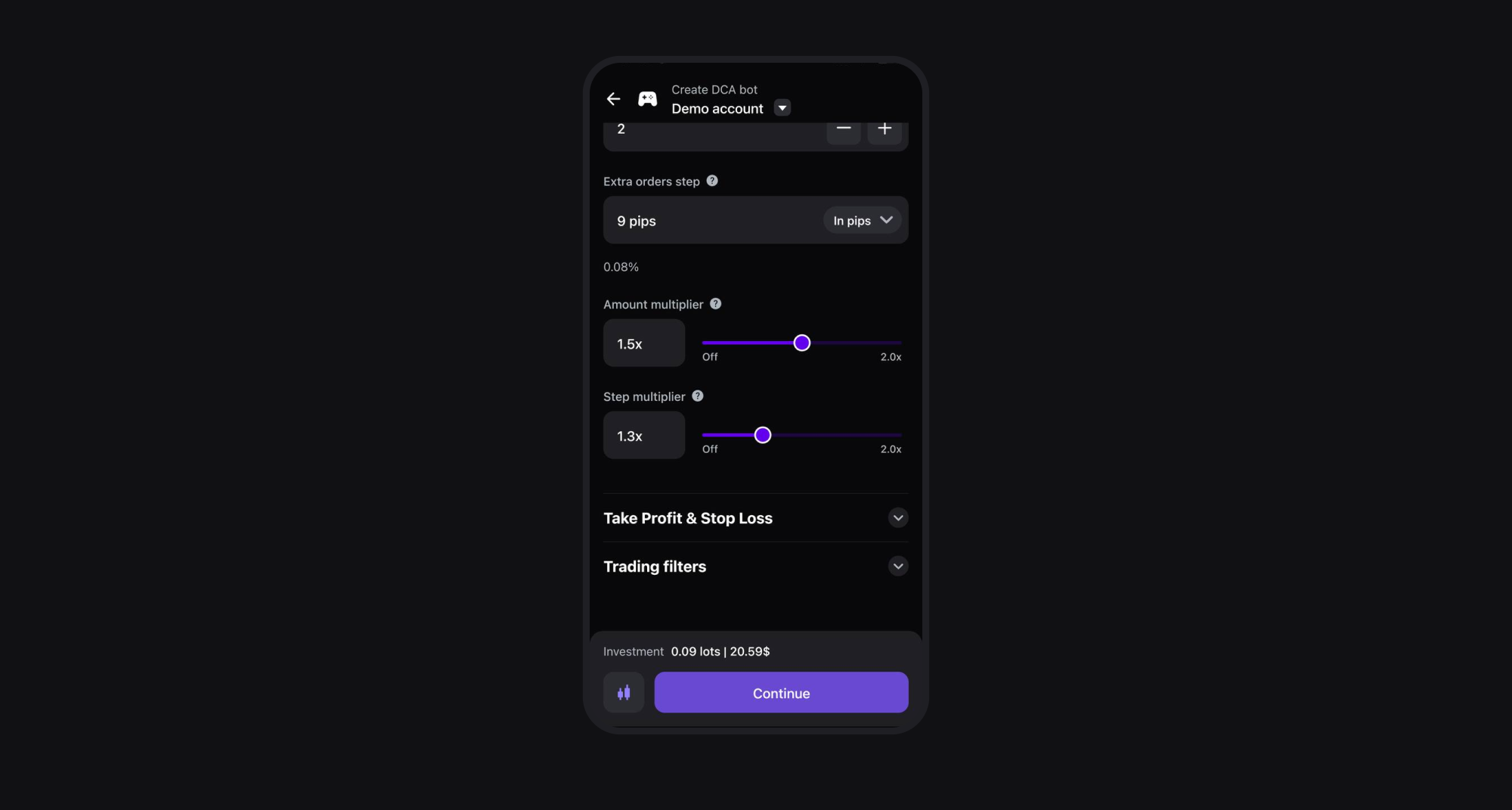
To optimize your position averaging strategy, you can use two helpful features: Amount multiplier and Step multiplier.
The Amount multiplier increases the volume of each subsequent order. For example, each new order can be 1.14 times larger than the previous one.
The Step multiplier increases the distance between subsequent orders, helping reduce the number of trades if the price moves against your initial order. For instance, each new order can be placed 1.05 times farther from the previous one.
Step 3: Take Profit & Stop Loss
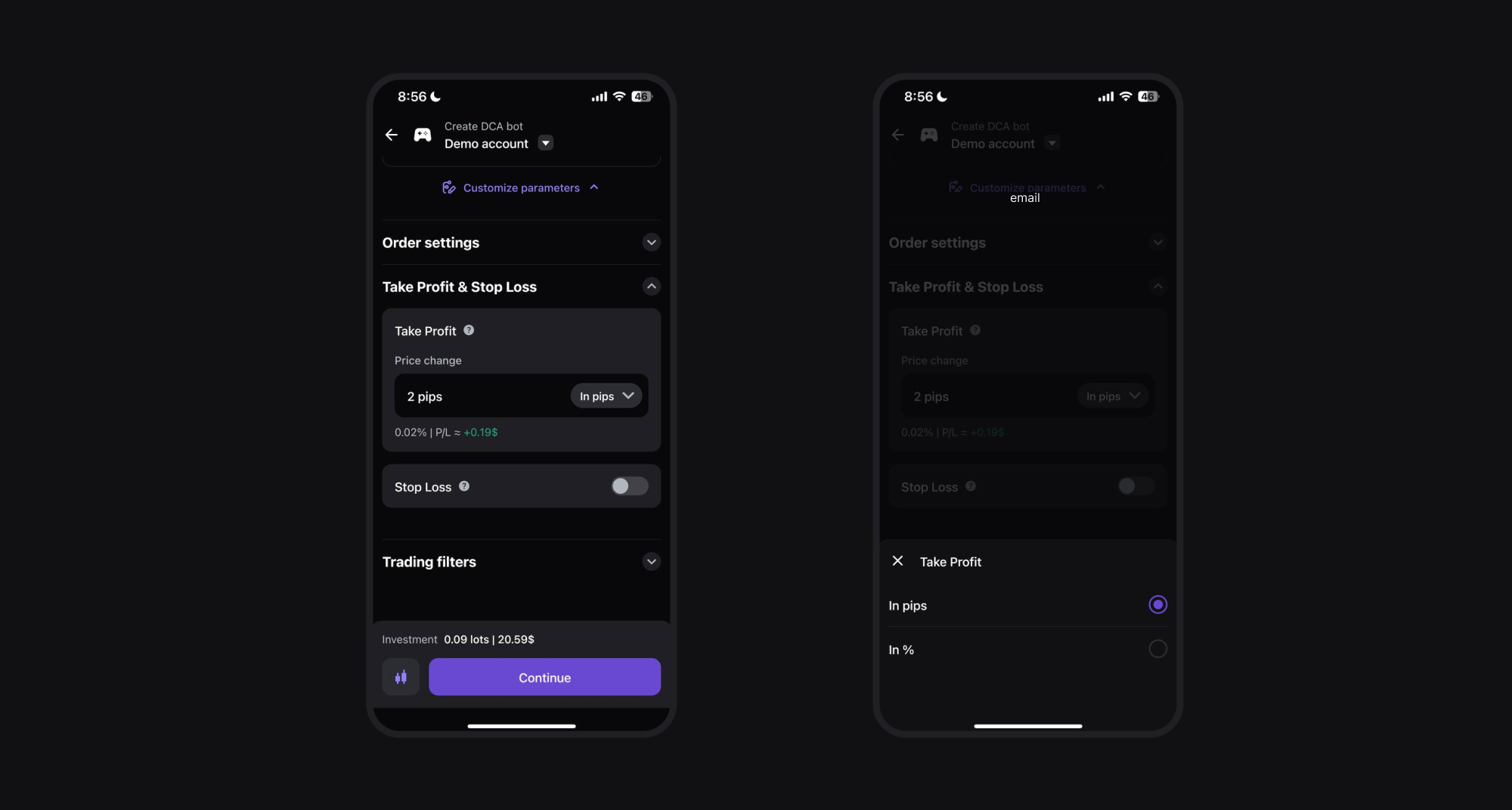
With Take Profit, you set the level at which your bot will close a position to secure gains — an essential tool for risk management in automated trading. You can define it in pips or percentages.
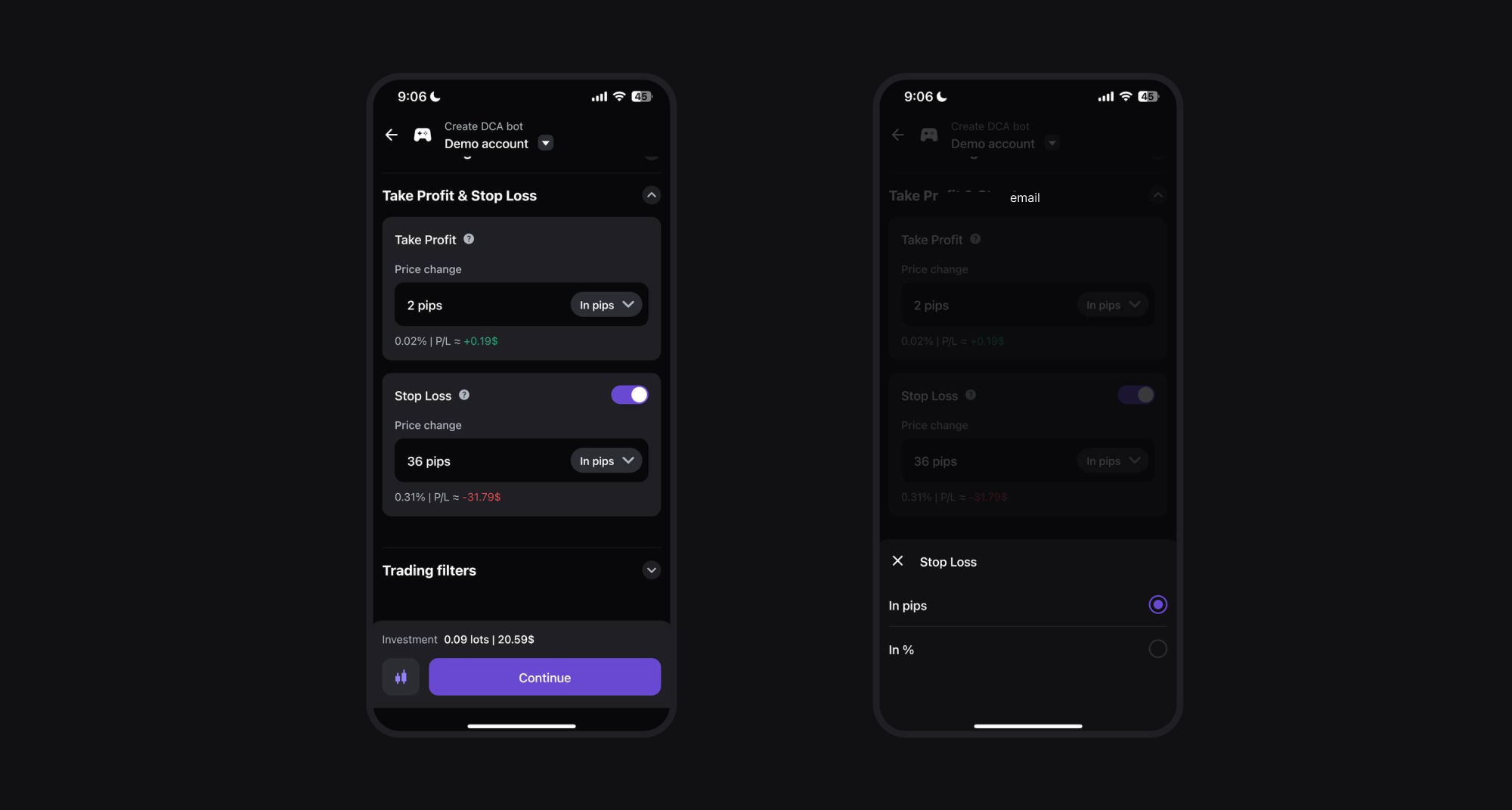
In addition to Take Profit, you can set a Stop Loss to define the loss level at which the series will close automatically.
A Stop Loss can also be set in pips or percentages.
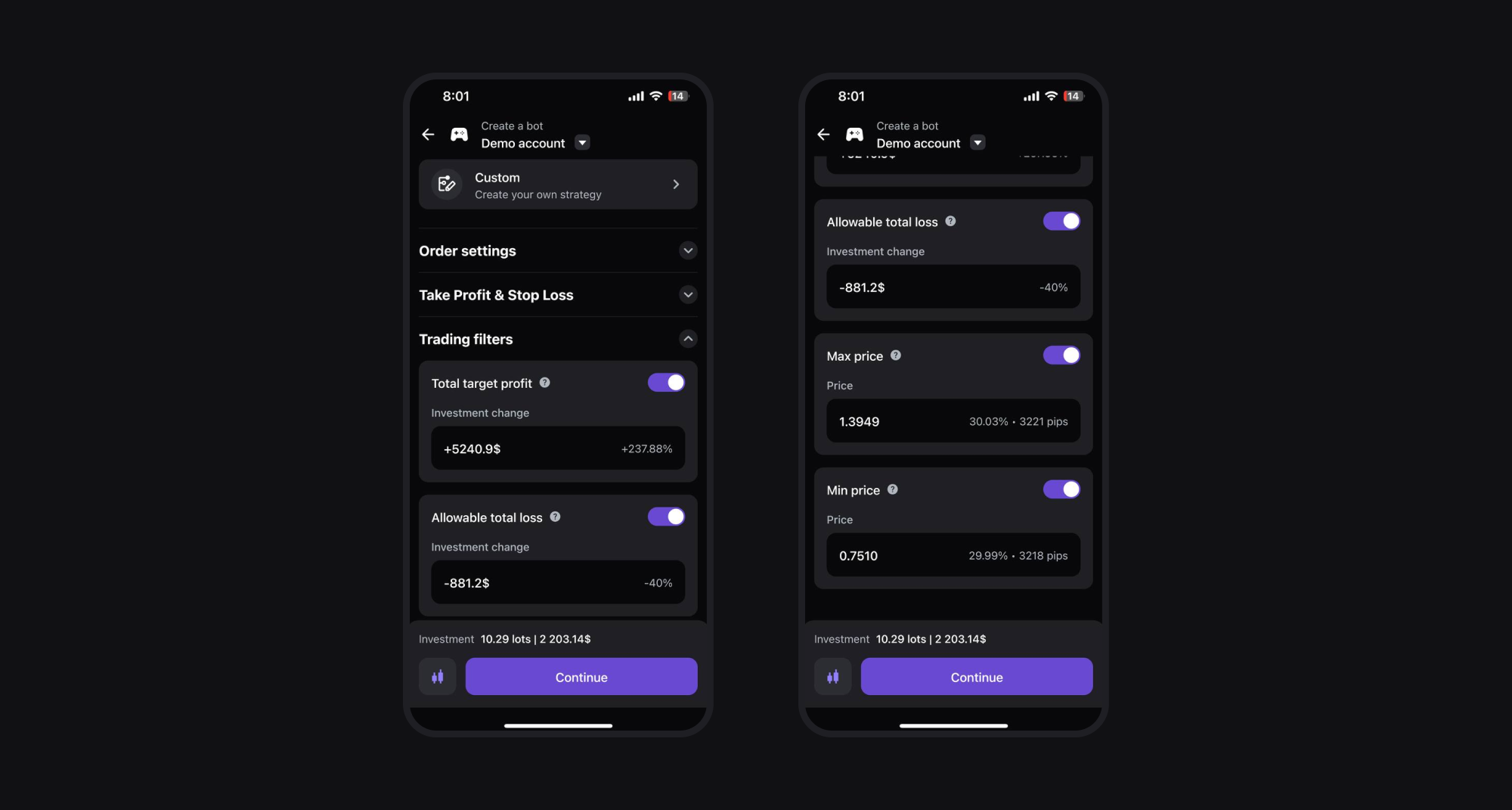
Step 4: Trading filters
This section includes settings that ensure your bot closes completely and help manage risk effectively.
- Total target profit: Set the return you expect. When this profit is reached, the bot will close the final trade and stop.
- Allowable total loss: Protects your funds by limiting potential losses. If this level is reached, the bot will stop trading without completing the last trade.
- Maximum and minimum price levels: Define limits to prevent opening new trades outside the desired range and reduce risks.
Step 5: Check the result
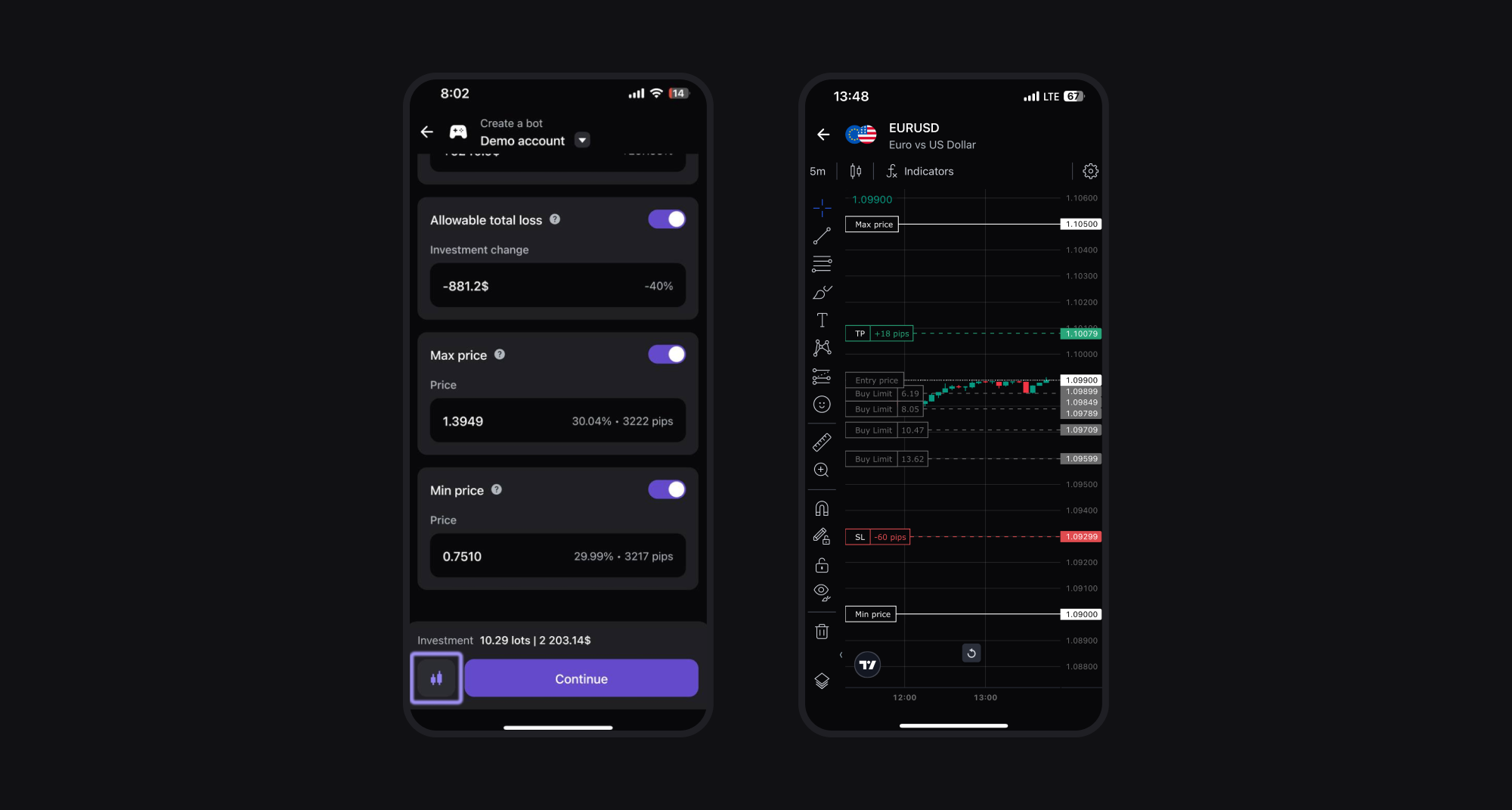
When creating a robot, you can use the panel to visualize your trading strategy on the chart. In the chart settings, you can choose the timeframe, format (candles or line), indicators, time zone, and even colors.
Your bot is now fully customized and ready to be launched. We wish you a successful trading journey!
If you have any issues or questions about setting up your trading bot, just contact our support team in the app. They will provide fast trading help with navigating the platform.